لم تُترجم هذه الصفحة بعد
تعرض هذه الصفحة النص الإنجليزي حتى تصدر ترجمتها.
Users and roles
Who may sign in to your organisation and what each of them may do. Only an Admin can open this screen.
What you see
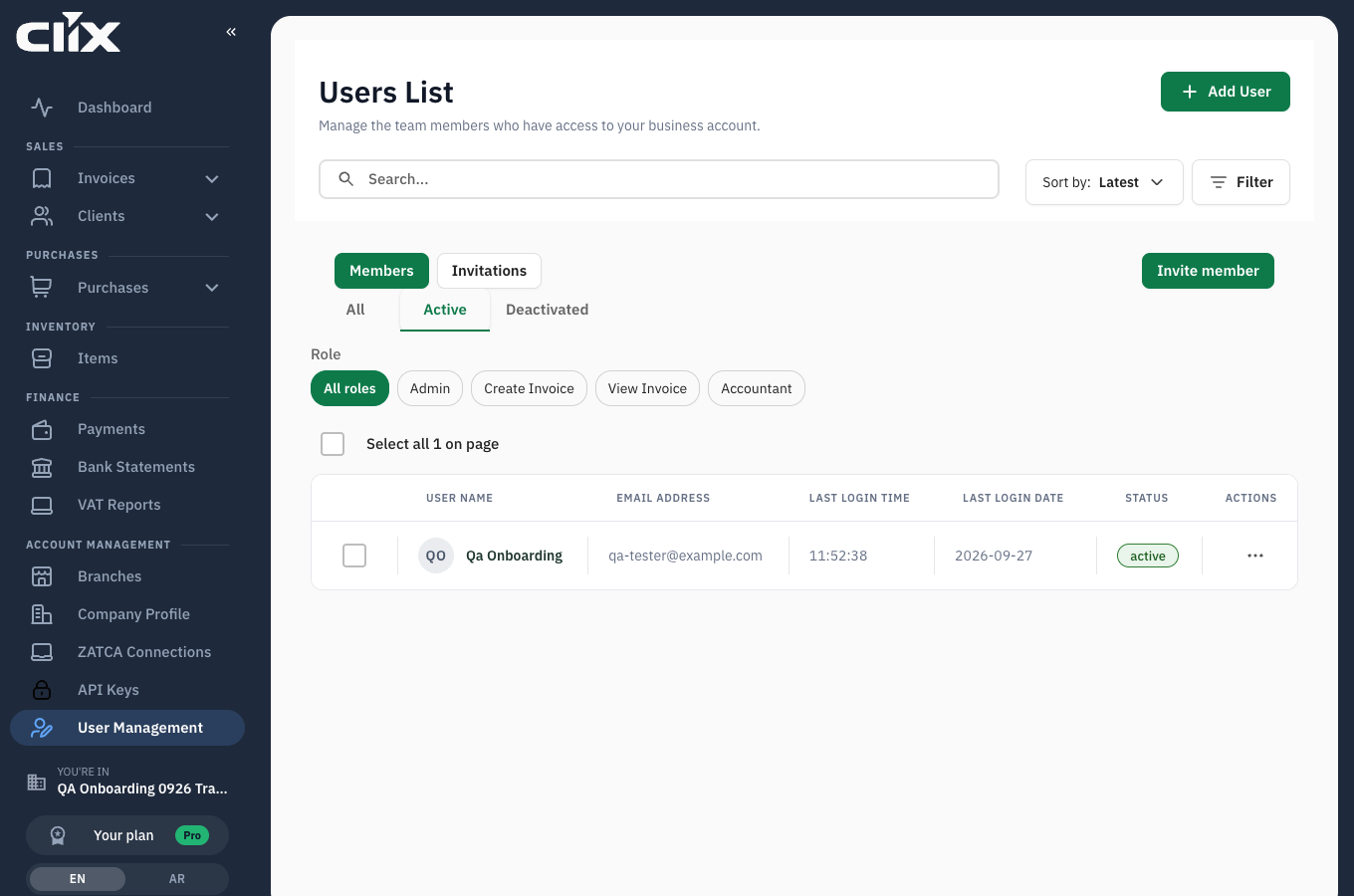
- Users List — "Manage the team members who have access to your business account."
- Members and Invitations: people who have joined, and invitations not yet accepted.
- All / Active / Deactivated: filter by status.
- The table: User name, Email address, Last login time, Last login date, Status, Actions.
- Add User and Invite member.
From invitation to leaving
flowchart LR
    A["<b>Invited</b><br/>listed under Invitations"] -->|"accepts"| B["<b>Active</b><br/>signs in, works<br/>within their role"]
    N["<b>Added</b> by an Admin"] --> B
    B -->|"Admin changes role"| B
    B -->|"Admin deactivates"| C["<b>Deactivated</b><br/>cannot sign in;<br/>their work stays"]
The four roles
| Role | In one line |
|---|---|
| Admin | Runs the organisation — plan, users, devices, profile |
| Accountant | Money and documents end to end; no administration |
| Create invoice | Issues invoices, manages clients and items |
| View invoice | Reads everything, changes nothing |
Full detail in Roles and permissions.
Tasks
Add a user directly
Why. You are creating the account for them.
Who. Admin.
- Click Add User.
- Enter First name, Last name, Phone and Email.
- Choose the role.
- Optionally upload a photo.
- Click Add User.
Result. The person appears under Members and can sign in.
Invite someone by email
Why. They create their own password, and you never handle it.
Who. Admin.
- Open the Invitations tab.
- Click Invite member.
- Enter the Email address and choose the Role.
- Click Send invitation.
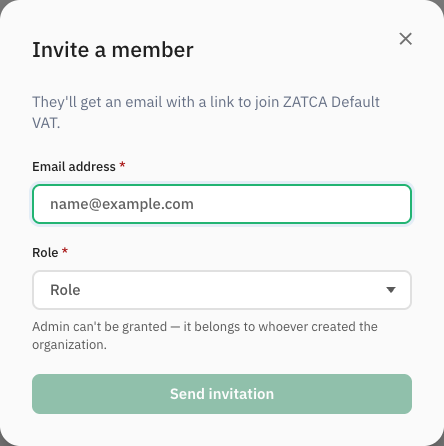
Result. The invitation is listed until accepted. The person receives an email with a link to join your organisation.
Change someone's role
Who. Admin.
Use Actions on their row. The change takes effect the next time they load a page.
Two limits
You cannot change your own role, and an organisation must always keep at least one Admin.
Admin is not on offer
Invite member and the role change do not list Admin: "Admin can't be granted — it belongs to whoever created the organization."
Deactivate someone
Why. They have left, or should not sign in for now.
Who. Admin.
Use Actions on their row, then filter by Deactivated to see them.
Result. They can no longer sign in. Nothing they created is removed — invoices, clients and items stay exactly as they are, and still show who created them.
See what someone has done
Why. An audit asks who changed what, or an invoice looks wrong and you need to know who touched it.
Who. Admin.
Open the user, then the Activity log tab. It lists their actions with the date and what was acted on, and can be narrowed to a date range.
You only ever see people in your own organisation. If you belong to several, each keeps its own log.