لم تُترجم هذه الصفحة بعد
تعرض هذه الصفحة النص الإنجليزي حتى تصدر ترجمتها.
Clients and client groups
The businesses and people you invoice. A client's details are copied onto every invoice you issue them and submitted to ZATCA, so accuracy here is what keeps invoices clearing.
Who. Admin, Accountant and Create invoice can add and edit. View invoice can read.
What you see
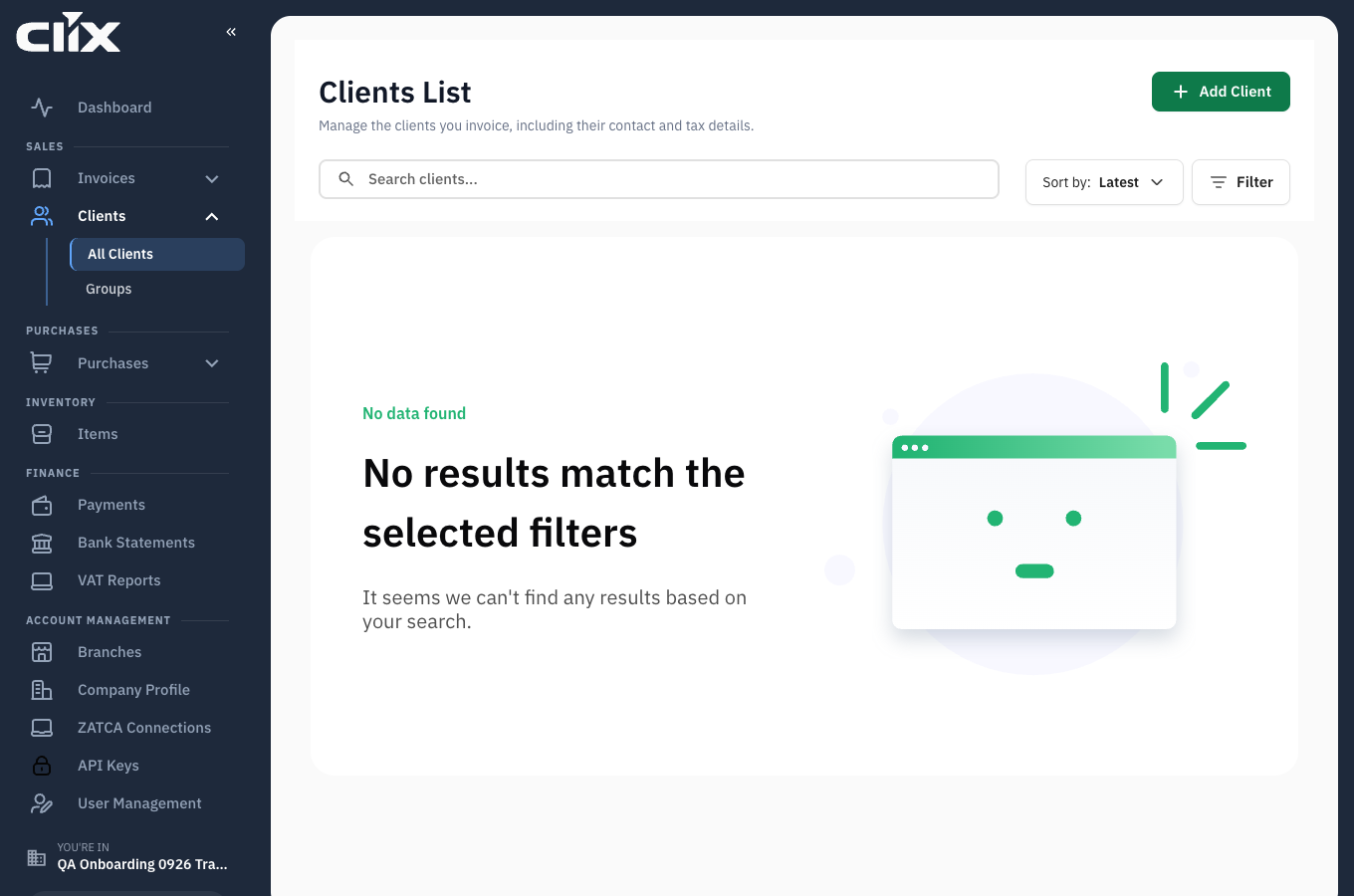
- Clients List — "Manage the clients you invoice, including their contact and tax details."
- Add Client: opens the client form.
- Sort by and Filter: order and narrow the list.
Tasks
- Which kind of client?
- Add a business client
- Add a consumer
- Add a client outside Saudi Arabia
- Group clients
- Add a client's logo
Which kind of client?
flowchart TD
    A{"Who is the buyer?"} -->|"A business in Saudi Arabia"| B["<b>Client type B2B</b><br/>switch on VAT Registered<br/>if it has a VAT number"]
    A -->|"A person or walk-in customer"| C["<b>Client type B2C</b><br/>a name is enough"]
    A -->|"A business outside Saudi Arabia"| D["<b>Client type B2B</b><br/>Country outside Saudi Arabia"]
    B --> E["Standard invoices"]
    C --> F["Simplified invoices"]
    D --> G["Export invoices,<br/>zero-rated"]
Add a business client
Why. A standard (B2B) invoice carries the buyer's name and national address, and its VAT number if it has one.
Who. Admin, Accountant, Create invoice.
The form has three steps: Basic Info, VAT & Contact and Address. The step-by-step is in Add your first client. In short:
- Click Add Client and choose Client type B2B.
- Enter the Client name (English) and Client name (Arabic), the Industry, and the Business ID Type and Business ID Number.
- If the business is VAT-registered, switch on VAT Registered and enter the VAT Number: 15 digits, starting and ending with 3.
- Enter the address. For a Saudi client, the building number has 4 digits and the postal code 5.
- Click Add Client.
Result. The client is available in the invoice form under Invoice for when Client type is B2B.
The VAT number travels onto the invoice
A wrong VAT number means a wrongly issued invoice, and a cleared invoice cannot be edited — only corrected with a credit note. Validate VAT Number opens ZATCA's public lookup; use it before the first invoice.
Add a consumer
Who. Admin, Accountant, Create invoice.
Choose Client type B2C. A consumer needs no VAT number. They receive simplified invoices, reported to ZATCA after issue rather than cleared before it. You can also invoice a walk-in customer without adding them at all: Invoice for is optional on a B2C invoice. See Invoice types.
Add a client outside Saudi Arabia
Who. Admin, Accountant, Create invoice.
Choose Client type B2B and set Country to the client's country. Clix then treats the client as foreign and switches VAT Registered off. There is no separate "non-resident" setting.
On the invoice, switch on Mark as export invoice to zero-rate it. See Export invoice.
Group clients
Why. To see and filter related clients together — branches of one company, or one owner's several businesses.
Who. Admin, Accountant, Create invoice.
Create a client group, then assign clients to it. Groups are for your own organisation and reporting; they do not appear on invoices.
Add a client's logo
Why. It marks the client's invoices and makes them easier to pick out in the app.
Who. Admin, Accountant.
Open the client and upload the logo. Uploading again replaces it.
Result. The logo appears on that client's invoices and on the client's profile. Your own organisation's logo is separate — see Organisation profile.
Searching
The client picker on the invoice form and the list search match on name in English or Arabic, city, industry, VAT number and phone number. Arabic spelling variants match each other, so احمد finds أحمد, and a phone number finds the client however it is written. See Search.