لم تُترجم هذه الصفحة بعد
تعرض هذه الصفحة النص الإنجليزي حتى تصدر ترجمتها.
Dashboard
The first screen after signing in. Until ZATCA approves your first invoice it is a setup checklist; after that it shows your cash, VAT and clients, and it is where you start an invoice or a client without hunting through the menu.
What you see
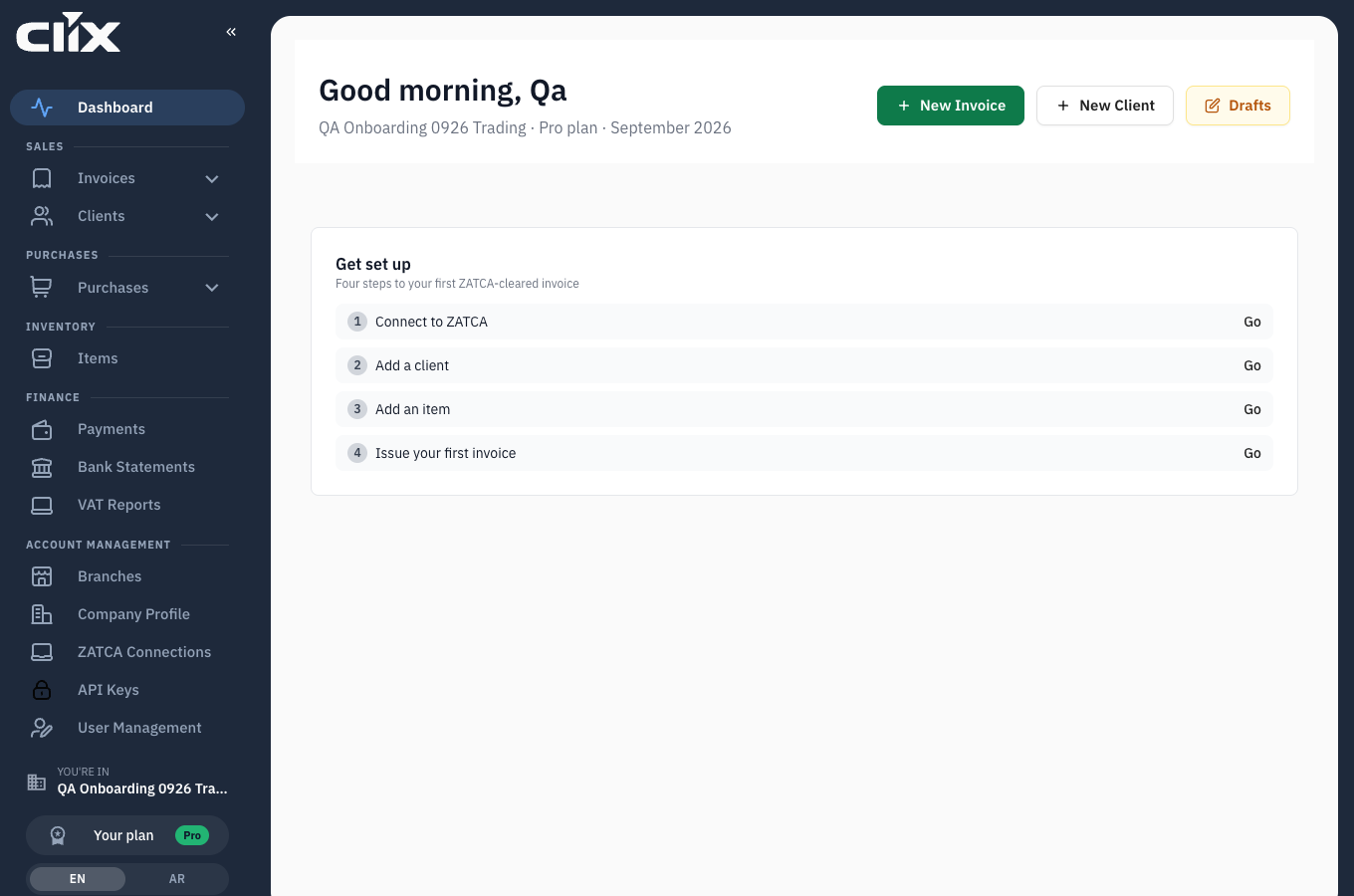
- Greeting and context: your name, then your organisation, plan and the current month, for example "ZATCA Default VAT · Business plan · September 2026". This line tells you which organisation you are working in.
- Quick actions: New Invoice, New Client and Drafts. Drafts carries the number of drafts waiting. You see New Invoice and New Client only if your role may create invoices and clients.
- Get set up: "Four steps to your first ZATCA-cleared invoice". A step you have done is ticked and struck through. A step still to do has a Go button.
- The sidebar: every module, grouped under Sales, Purchases, Inventory, Finance and Account Management. At the bottom, You're in names your organisation and Your plan shows your plan.
The setup checklist
A new organisation sees four steps:
- Connect to ZATCA: register a device and get its certificate. Nothing can be issued before this. See Connect a device to ZATCA.
- Add a client: who you are invoicing. See Clients and client groups.
- Add an item: what you are selling. See Items.
- Issue your first invoice: see Issue your first invoice.
Each Go button opens the screen for that step. You see Go only for steps your role may do.
The checklist stays until ZATCA approves your first invoice. Then the cards below replace it.
The cards
| Card | What it tells you |
|---|---|
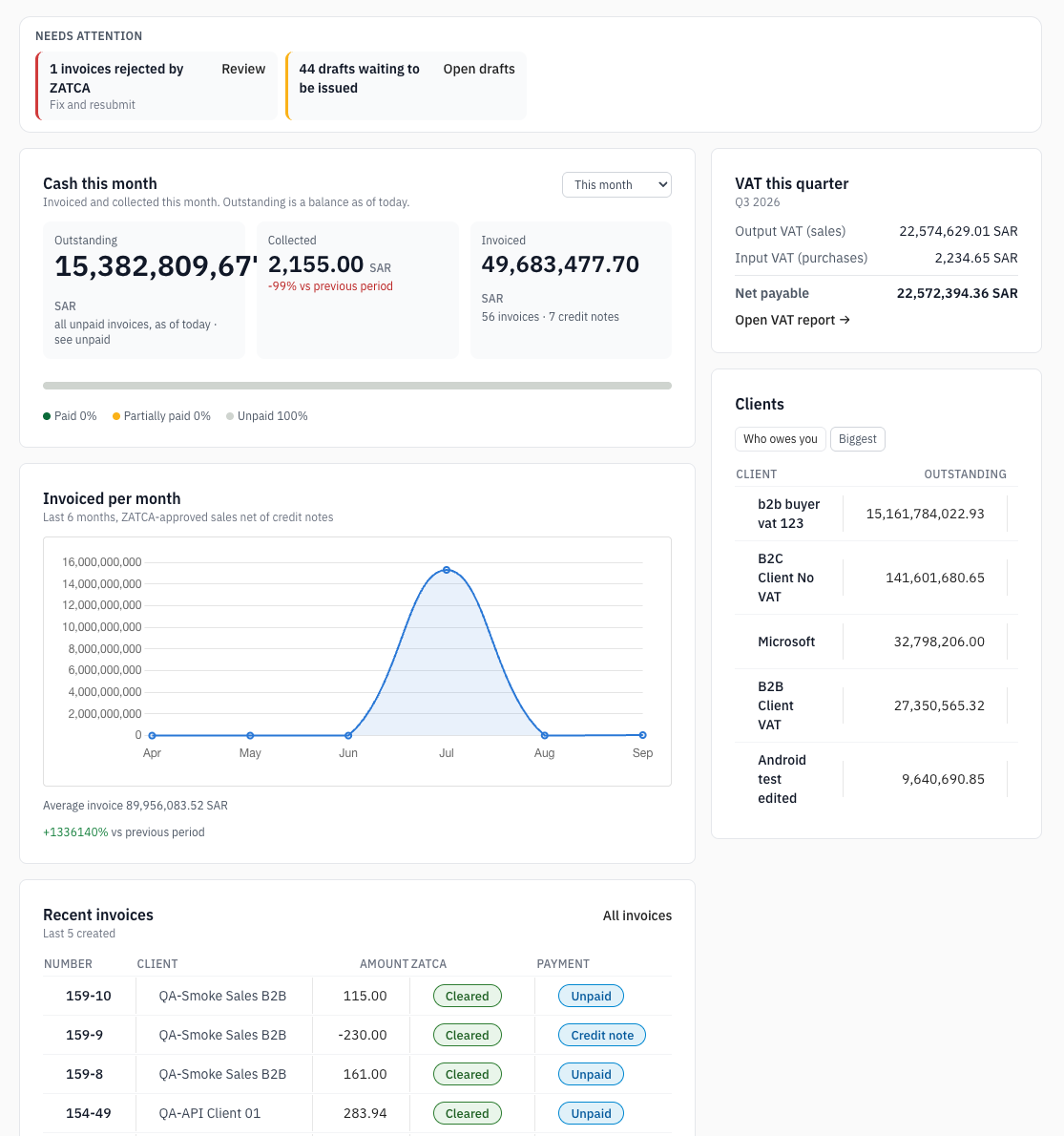
| Needs attention | What blocks you: invoices ZATCA rejected, drafts waiting to be issued, a ZATCA certificate expired or expiring within 30 days, and your monthly invoice limit when you have used 80% of it or more. Each item has a button, for example Review or Open drafts |
| Cash this month | Outstanding, Collected and Invoiced, with the split into Paid, Partially paid and Unpaid. The selector changes the period to Last 30 days or Last 3 months. Outstanding is every unpaid invoice as of today, whatever the period |
| Invoiced per month | Six months of ZATCA-approved sales, net of credit notes, with your average invoice |
| Recent invoices | The last five created, with their ZATCA and Payment status. All invoices opens the full list |
| VAT this quarter | Output VAT (sales), Input VAT (purchases) and Net payable for the current quarter. Open VAT report opens the VAT Filing Report |
| Clients | Two tabs. Who owes you lists clients by what they owe, with the age of their oldest unpaid invoice. Biggest lists clients by what you invoiced them |
| Low stock | How many items are below their alert level. Manage items opens the item list |
Needs attention is the one to read first. It sits above the checklist and above the cards, and it appears only when something needs you.
VAT this quarter is shown to Admin and Accountant. Other roles do not see it.
The trend chart is not on Free
Invoiced per month shows "Upgrade to see your trend" on the Free plan. Every other card is on all three plans. See Plans, limits and fair use.
What replaces the checklist
The checklist and the cards below are never on screen together. Once the four steps are done the checklist goes, and the dashboard becomes:
| Card | What it tells you |
|---|---|
| Needs attention | The things that block you — invoices ZATCA rejected, drafts waiting, a certificate expiring, the invoice limit |
| Cash this month | Invoiced, collected and outstanding. Outstanding is every unpaid invoice as of today, not just this month's |
| Invoiced per month | Six months of ZATCA-approved sales, net of credit notes, with your average invoice |
| Recent invoices | The last five created, with ZATCA and payment status |
| Clients | Who owes you, your biggest client, and the oldest unpaid invoice |
| Low stock | Items below their alert level |
Needs attention is the one to read first: it is the only place the dashboard tells you something is wrong.
The trend chart is not on Free
Invoiced per month shows "Upgrade to see your trend" on the Free plan. Every other card is on all three plans. See Plans, limits and fair use.
Tasks
Start an invoice from the dashboard
Who. Admin, Accountant, Create invoice.
Click New Invoice. This is the same form as Invoices → Create invoice; see Invoices for the steps.
Find a draft you left
Who. Admin, Accountant, Create invoice.
Click Drafts. Drafts do not count against your monthly invoice allowance until you issue them.
Check which organisation you are in
Who. Everyone.
Read the line under the greeting. It names the organisation, the plan and the month. If you belong to more than one organisation, check this line before you create anything. See Organisation profile and multiple organisations.