لم تُترجم هذه الصفحة بعد
تعرض هذه الصفحة النص الإنجليزي حتى تصدر ترجمتها.
Purchases and vendors
What you bought, from whom, and the VAT you were charged. This is the input side of your VAT return: a purchase you never record is input VAT you never reclaim.
Who can do what
| Admin | Accountant | Create invoice | View invoice | |
|---|---|---|---|---|
| See purchases and vendors | yes | yes | yes | yes |
| Record purchases, add and edit vendors, reconcile | yes | yes | yes | — |
| Delete a purchase | — | — | — | — |
Nobody can delete a purchase. See Correct a purchase.
What you see
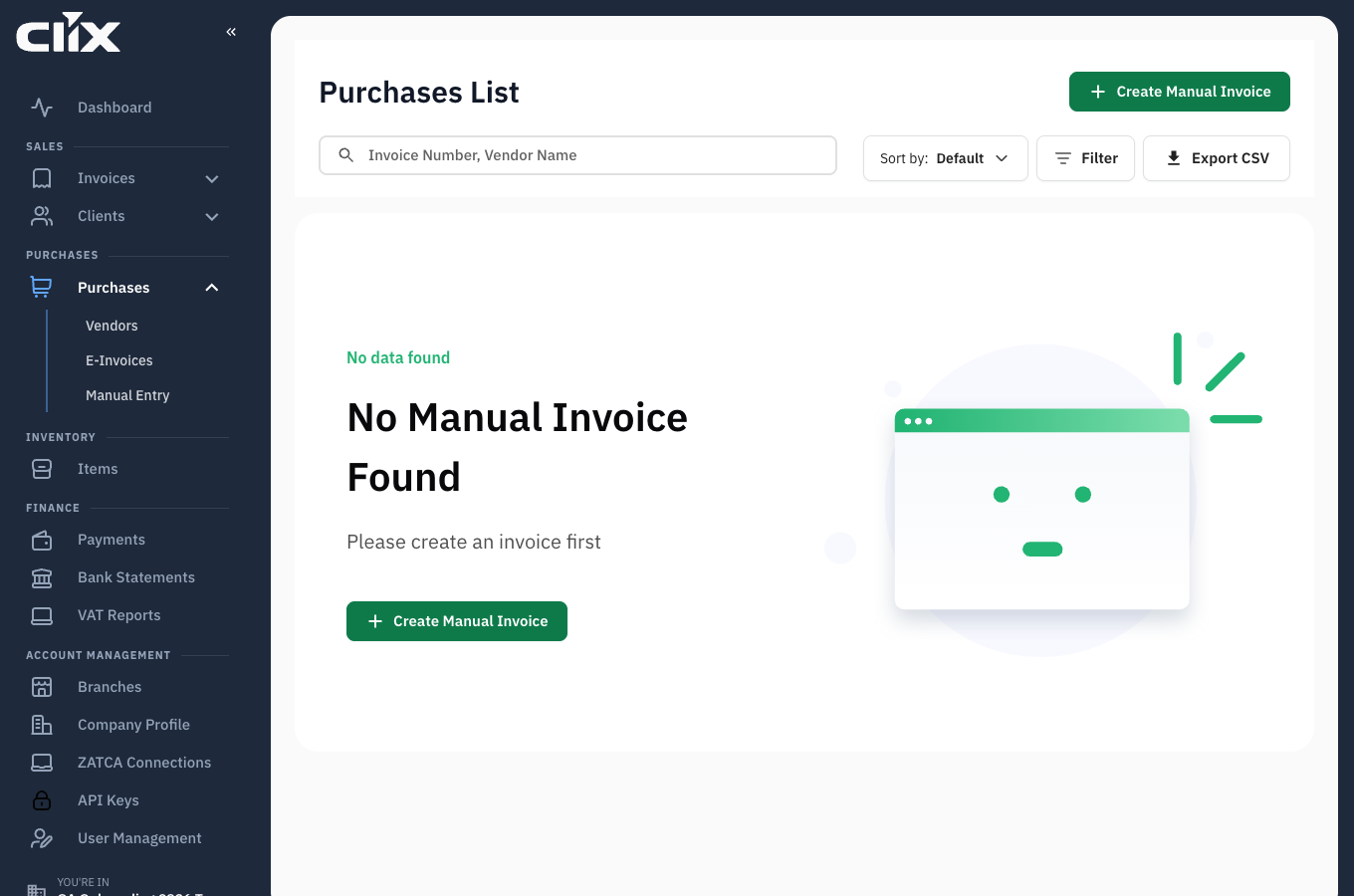
The sidebar's Purchases group opens three lists:
| Sidebar | Page title | Shows | Button |
|---|---|---|---|
| Vendors | Vendors List | Your suppliers | Create Vendor |
| E-Invoices | ZATCA Verified Invoices | Purchases uploaded as a supplier's ZATCA e-invoice | Upload ZATCA Invoice |
| Manual Entry | Manual Invoices / Debit Note / Credit Note | Purchases, credit notes and debit notes you typed in | Create Manual Invoice |
Every purchase gets a number from Clix: purch#1, purch#2 and so on. That number is how you find it again.
Each list shows 10 purchases a page, with the columns Invoice ID (the purch# number), Vendor, Creation Date and Net Amount (before VAT).
Filter narrows the list by:
- Payment Status
- Invoice Status
- Date From and Date To, on the invoice date. Set both.
- Invoice Type: tax invoice, credit note or debit note
- VAT Rate: 15%, 5% or 0%
- VAT Category Code: S, Z, O or E
- Amount Range
- Exclude Saudi Vendors, to see only imports
Search finds a purchase by its purch# number or the vendor's English name. Press Enter to search. See Search.
Two ways in
| Method | Use it when |
|---|---|
| Upload ZATCA Invoice | The supplier sent a ZATCA e-invoice as a PDF/A-3 or an XML file. Clix reads the invoice and checks its signature. |
| Create Manual Invoice | You have a paper or PDF invoice without the XML, or a supplier outside Saudi Arabia |
flowchart TD
    A[Supplier invoice] --> B{Have the ZATCA PDF/A-3 or XML file?}
    B -->|yes| C[Upload ZATCA Invoice<br/>vendor + file]
    B -->|no| D[Create Manual Invoice<br/>vendor, dates, lines, file]
    C --> E{Checks pass?}
    E -->|no| F[Error names the problem]
    E -->|yes| G[Purchase saved]
    D --> G
    G --> H[Input VAT in the VAT filing report]
Clix does not scan QR codes from a camera or an image. On an uploaded e-invoice, Clix compares the QR code inside the file with the invoice's own data and records whether they agree. A mismatch does not stop the upload.
Tasks
- Upload a supplier's ZATCA e-invoice
- Record a purchase by hand
- Record a credit or debit note from a vendor
- Pay a bill
- Match a purchase to a bank payment
- Correct a purchase
- Add a vendor
- Deactivate a vendor
- Export your purchases
Upload a supplier's ZATCA e-invoice
Why. The e-invoice already carries every figure, signed by the supplier, so nothing is typed by hand.
- Open E-Invoices and click Upload ZATCA Invoice.
- Choose the Vendor.
- Drop the supplier's file: a PDF/A-3 with the XML inside it, or the XML file itself. Up to 8 MB.
- Click Upload ZATCA Invoice.
Result. The purchase is saved with the supplier's invoice number and all its lines. If a check fails, nothing is saved:
| Message | Meaning |
|---|---|
| Seller in the uploaded invoice does not match your organization. | Your organisation is not the buyer on this invoice. |
| Signature is not valid | The file's digital signature does not check out. |
| Invoice does not belong to this vendor | The seller on the invoice is not the vendor you chose. |
| The purchase invoice already exists | This vendor's invoice with this number is already recorded. |
| No XML attachments found in the PDF | The PDF has no e-invoice XML inside. Ask the supplier for the PDF/A-3 or the XML. |
Record a purchase by hand
Why. The supplier did not send a ZATCA e-invoice file.
- Open Manual Entry and click Create Manual Invoice. The page is titled Manual Create.
- Choose the Vendor. Only active vendors are offered; add a new one first under Vendors. The Currency and Source of Supply fill in from the vendor.
- Set the Invoice Date and the Invoice Due Date. Both start at today. The due date cannot be before the invoice date.
- Leave Invoice Type on Tax Invoice.
- Choose Tax Type. Inclusive (the default) means the prices you type already include VAT; Exclusive means VAT is added on top.
- Choose Discount Type: At Line Item Level for a discount on each line, or At Transaction Level for one discount on the whole invoice.
- Add each line: Product Name, Price, Quantity and VAT. Enter a Discount % if the supplier gave one. Click Add New Item for another line.
- Under Attachments, add the supplier's invoice as a PDF, PNG or JPEG file, up to 8 MB. The file is required.
- Click Add Invoice.
Result. The purchase gets the next purch# number, its payment status is Pending, and its VAT counts in the VAT filing report for the period that contains the invoice date.
The VAT choices on a line are:
| Choice | Category | Rate |
|---|---|---|
| Standard Rate [15%] | S | 15% |
| Standard Rate [5%] | S | 5% |
| Zero Rate [0%] | Z | 0% |
| Exempt | E | 0% |
| Other [0%] | O | 0% |
A worked example. With Tax Type Inclusive, one line at price 100, quantity 1, 15% VAT and a 20% discount:
| Summary line | Amount |
|---|---|
| Subtotal (100 without its VAT) | 86.96 |
| Invoice Discount (20%) | 17.39 |
| Subtotal with Discount | 69.57 |
| VAT (15% of 69.57) | 10.43 |
| Total | 80.00 |
Where to put the supplier's invoice number
The manual form has no field for the supplier's own invoice number. Put it in Notes (up to 500 characters) so you can match it later. Search cannot find it there; search by the vendor or the purch# number.
Enter the VAT exactly as the supplier charged it
This figure is what you reclaim. Rounding it or guessing changes your return.
A foreign-currency vendor shows an Exchange Rate field. A Saudi vendor must be invoiced in SAR.
Record a credit or debit note from a vendor
Why. The supplier reduced (credit note) or increased (debit note) what you owe.
Follow Record a purchase by hand and set Invoice Type to Credit Note or Debit Note.
Result. In the VAT filing report a credit note reduces your input VAT and a debit note adds to it. A note is not linked to an earlier purchase; mention the original purch# number in Notes.
Pay a bill
Why. To track what you still owe each vendor.
Record the payment on the Payments page: Record payment, then Money out, then choose the purchase. See Record a payment made on a bill.
The purchase's payment status then moves:
| Payment status | When |
|---|---|
| Pending | Nothing paid yet |
| Partially Paid | Some paid, a balance remains |
| Paid | The balance is zero. The purchase is no longer offered when you record a payment. |
A payment larger than the remaining balance is refused. A purchase never becomes Overdue: after its due date it stays Pending or Partially Paid.
Match a purchase to a bank payment
Why. To find the bank line that paid this supplier, from a bank statement you imported.
Open the purchase and click Reconcile. Clix looks at money leaving your account, dated from the invoice date to 90 days after it, where the bank line's text mentions the purchase number, the vendor's name in English or Arabic, or the vendor's VAT number. It returns:
| Group | Rule |
|---|---|
| Exact | The amount equals the purchase's payable amount, to the halala |
| Probable | The amount is smaller than the payable amount, as with a part payment |
Clix compares the full payable amount, not the balance left after earlier payments, and does not convert a foreign-currency purchase to SAR. For payments outside the 90 days, work from the bank statement instead: Payments → Bank reconciliation. See Payments.
Correct a purchase
A purchase cannot be deleted. The list shows a delete icon, but Clix refuses with "Purchase invoice deletion is not allowed." The app has no edit button either.
To correct a purchase, record a credit note from the same vendor for the wrong amount, then record the purchase again with the right figures. The VAT report nets the two.
Add a vendor
Why. Every purchase belongs to a vendor.
- Open Vendors and click Create Vendor.
- Fill in the form. Fields marked * are required:
| Field | Rule |
|---|---|
| Vendor Type * | B2B or B2C |
| Status * | Active (the default) or Inactive |
| Vendor Name | English and Arabic, each in its own script |
| Industry * | From the list |
| VAT Treatment * | VAT Registered, Non VAT Registered, GCC VAT Registered, GCC Not VAT Registered, or Not GCC. It must match the Country: a Saudi vendor is VAT Registered or Non VAT Registered, a vendor in another GCC country uses a GCC treatment, and any other country is Not GCC. |
| VAT Number | For a VAT Registered vendor: 15 digits, starting and ending with 3. Required for GCC VAT Registered. Leave it empty for every other treatment. |
| Currency * | Used on the vendor's purchases |
| Country * | Defaults to Saudi Arabia |
| Contact and address | Contact name, email, phone, state, city, postal code, building number, district, street |
| Logo | SVG, PNG, JPG or GIF, up to 800 KB |
- Click Add Vendor.
Result. The vendor is offered when you record a purchase. Two vendors cannot share a name (the match is case-sensitive) or a VAT number.
Deactivate a vendor
A vendor cannot be deleted. Open the vendor's menu in the Vendors list and click Deactivate. A deactivated vendor is hidden from the list and cannot be chosen for a new purchase; its purchases stay. Activate reverses it.
Attach the supplier's invoice file
Why. ZATCA expects you to be able to produce the document behind a reclaim. Keeping the supplier's PDF or scan on the purchase means you are not hunting through email at audit time.
Who. Admin, Accountant.
Open the purchase and upload the file. You can replace it later with a corrected copy.
Result. The file is stored against the purchase. It is yours — it is not sent to ZATCA.
Match a purchase to a bank payment
Why. To find the bank line that paid this supplier.
Who. Admin only.
Open the purchase and click Reconcile. It works exactly as it does on a sales invoice — exact and probable matches, drawn from your imported bank transactions. See Match an invoice to a bank payment.
Export your purchases
Export CSV downloads purchases.csv with one row per line item, so a purchase with three lines takes three rows. The file has 30 columns, including the purch# number, vendor, dates, totals, VAT and each line's product, quantity, net amount and VAT category.
The export includes every purchase that matches your filters, from both lists, however many pages the list has. It does not include the payment status.
How purchases reach your VAT return
The VAT filing report counts every purchase whose invoice date falls in the period, whatever its payment status:
- Tax invoices add their VAT.
- Credit notes subtract theirs.
- Debit notes add theirs.
- A vendor outside Saudi Arabia is reported under reverse charge (imports) at 5% or 15%.
Checked on 2026-09-29: the purchases dated that day carried 342.90 of VAT on tax invoices, 150.00 on credit notes and 60.00 on debit notes. The report for that day showed 252.90 (342.90 − 150.00 + 60.00).
Limits
| Item | Limit |
|---|---|
| Attachment on a manual purchase | Required; PDF, PNG or JPEG; up to 8 MB; one file |
| ZATCA e-invoice upload | PDF/A-3 or XML, up to 8 MB |
| Price on a line | More than 0 and less than 1,000,000,000 |
| Quantity on a line | At least 1 |
| Discount | Up to 100% |
| Notes | Up to 500 characters |
| Vendor logo | Up to 800 KB |
Recording purchases and vendors counts toward fair use when Clix has switched it on. No purchase feature depends on your plan.