لم تُترجم هذه الصفحة بعد
تعرض هذه الصفحة النص الإنجليزي حتى تصدر ترجمتها.
Bank statements
Where the bank statement enters Clix. Upload the file your bank exports, tell Clix once which column is which, and the lines become the material for reconciliation. Written for the accountant; an Admin can do everything here too.
What you see
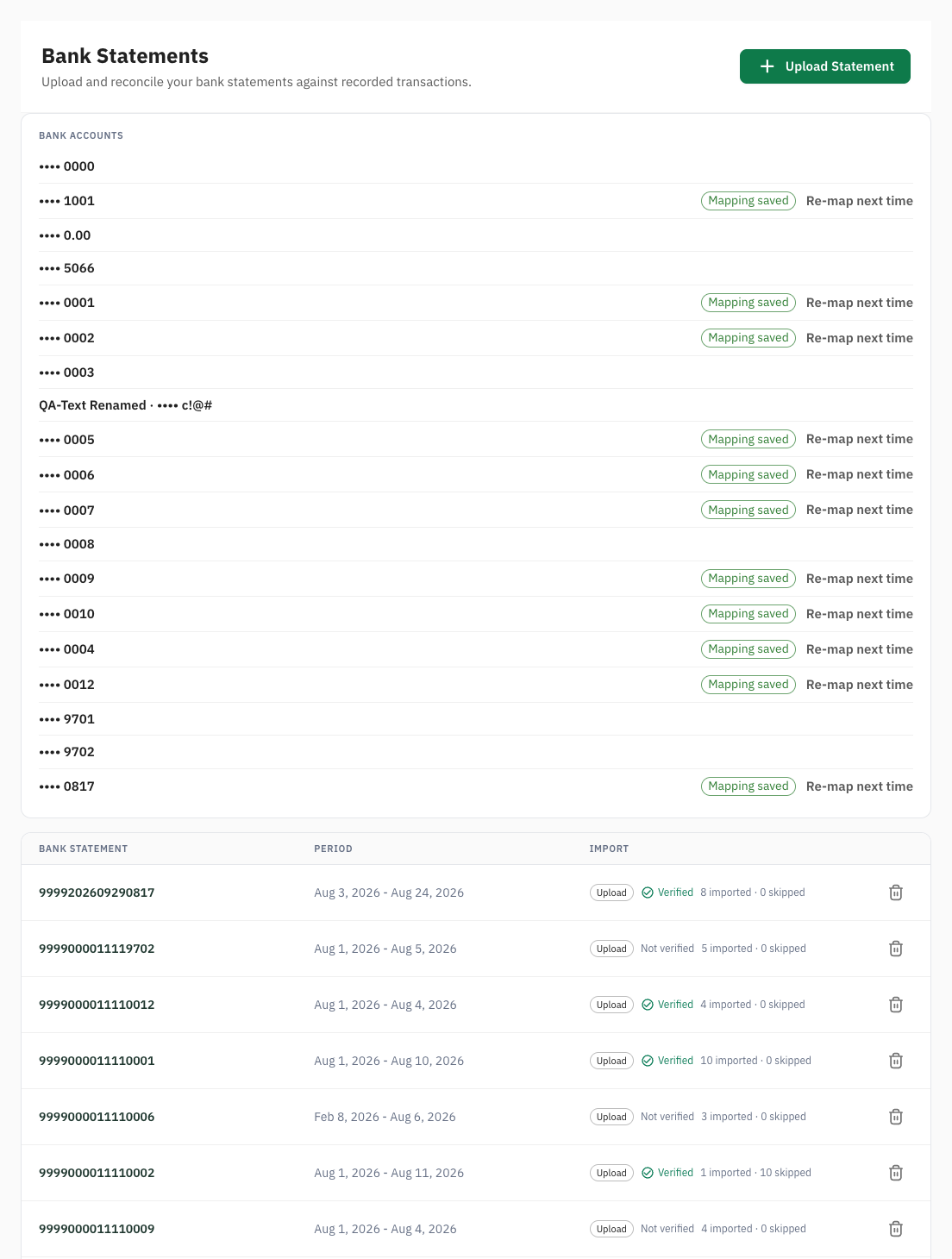
- Upload Statement, top right.
- Bank accounts: every account Clix knows, shown as its nickname and the last four digits of the account number. Mapping saved marks an account whose column mapping Clix remembers. An Admin also sees Re-map next time on it.
- The statements list: one row per statement, with the columns Bank Statement (the account), Period and Import. Import shows how the statement arrived (Upload), Verified or Not verified, and the counts, for example "8 imported · 0 skipped". An Admin sees a bin icon, Delete, at the end of the row.
- Click a row to open Statement Details: the account, the period, Total Credits, Total Debits and the lines. Download downloads the file you uploaded.
The lines are worked on the Bank reconciliation tab of Payments.
From upload to matching
flowchart TD
    A["Upload Statement"] --> B{"Account known?"}
    B -->|"Read it from the file"| C{"Mapping saved<br/>for the account?"}
    B -->|"No account number in the file"| D["Choose an account<br/>or New account…"]
    D --> C
    C -->|"Yes"| F["Import"]
    C -->|"No"| E["Map the columns"]
    E -->|"Continue"| F
    F --> G{"Balance chain"}
    G -->|"Breaks"| H["Nothing imported<br/>fix the mapping"]
    H --> E
    G -->|"Passes, or no Balance column"| I["Lines imported<br/>Verified or Not verified"]
    I --> J["Payments → Bank reconciliation"]
J --> K["Link to an invoice or bill,<br/>or Not an invoice"]Tasks
- Export the statement from your bank
- Upload a statement
- Map the columns the first time
- Re-map an account
- Finish an upload in one sitting
- Close a line that is not invoice money
- Delete a statement
Export the statement from your bank
Clix reads CSV and Excel (.xlsx) files, up to 10 MB. It does not read PDF or the old .xls format. In your bank's business portal, export the account statement for the period as CSV if offered, otherwise Excel. The upload dialog says why: "CSV keeps Arabic text intact." If your bank gives only PDF, tell support.
Upload a statement
Who. Admin, Accountant. Seen on the sandbox 2026-09-29.
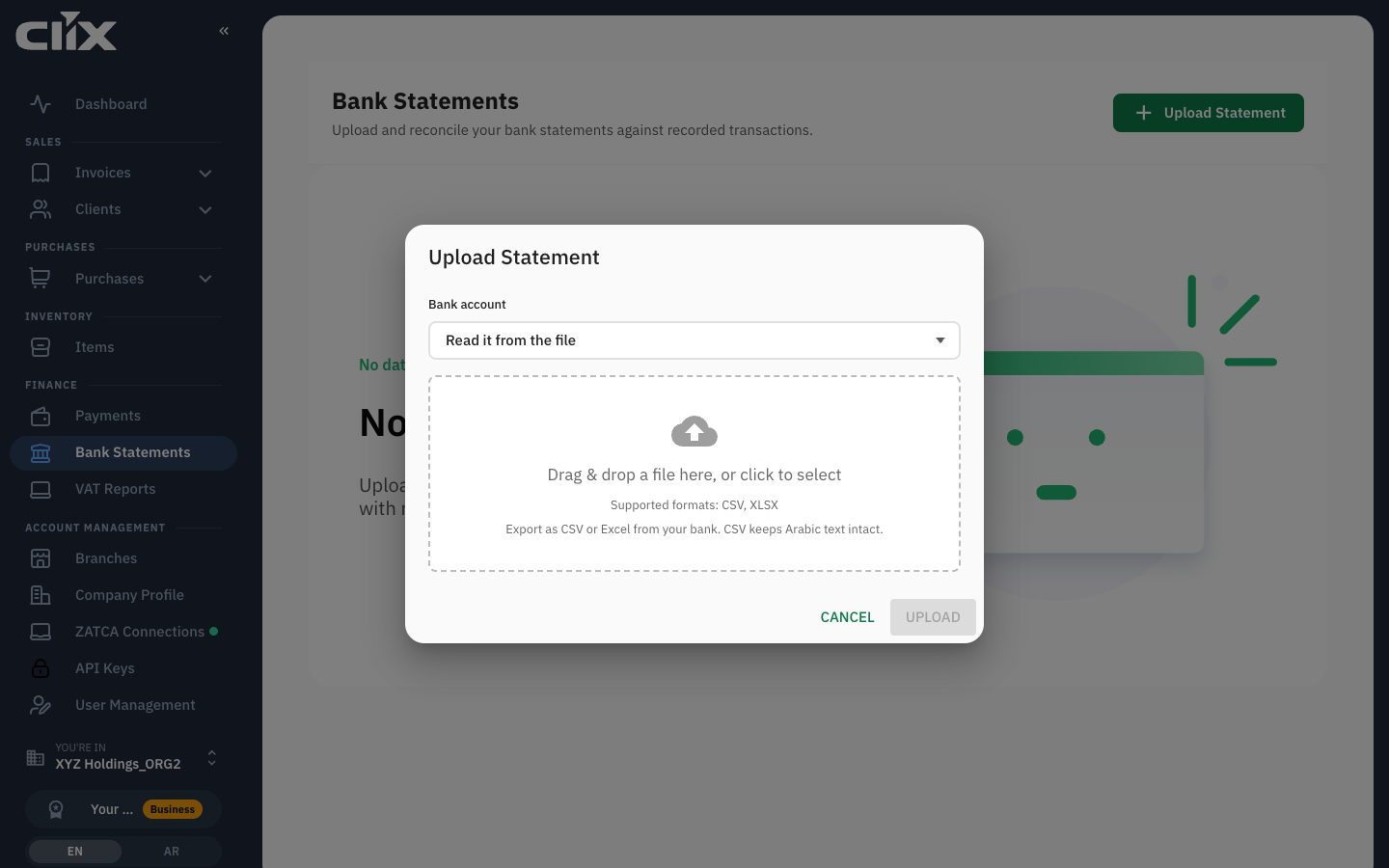
- Click Upload Statement, the button at the top right of the page.
- Leave Bank account on Read it from the file for a bank export that prints the account number above the lines. Otherwise pick the account from the list, or pick New account….
- Drop the file on Drag & drop a file here, or click to select, or click Choose File.
- Click Upload. It stays disabled until a file is chosen.
If the file carries no account number, the dialog says so: "This file carries no account number. Choose the account it belongs to." Pick an account, or pick New account… and enter the Account number and, if you like, a Nickname (optional). Then click Continue.
Result. For an account with a saved mapping the lines import at once. For a new account, or a file whose layout Clix does not recognise, the Map the columns step opens.
Map the columns the first time
Why. Every bank lays out its export differently and none publishes the layout. You tell Clix once per account: "Tell Clix which column is which. It is saved for this account and asked once."
Who. Admin, Accountant.
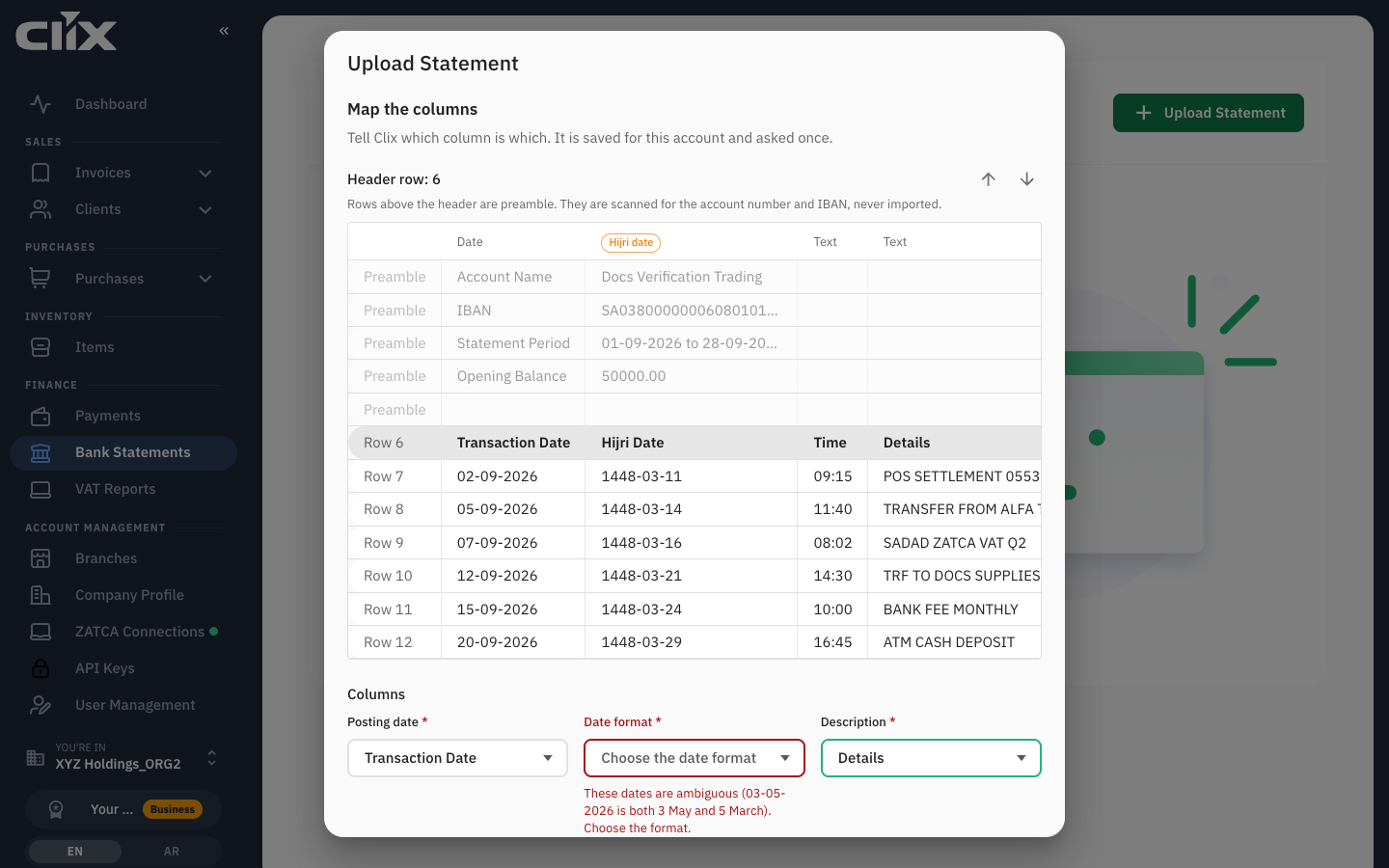
- For an Excel file with several sheets, choose the Sheet. The file is read again.
- Check the header row. Clix shows the top of the file as a grid with each row numbered, and marks the rows above the header Preamble. Those rows are only read for the account number and IBAN. Each column is labelled Date, Hijri date, Text or Amount. Use Header row up and Header row down to move the header if Clix picked the wrong row.
- Under Columns, pick a file column for each field:
- Posting date, required. A Hijri column is greyed out here.
- Date format, asked only when the dates are ambiguous: "03-05-2026 is both 3 May and 5 March". Choose DD/MM/YYYY, MM/DD/YYYY, YYYY-MM-DD or DD-MMM-YYYY.
- Description, required.
- Hijri date, Time, Remarks or second description and Reference or channel, optional. They are kept with each line.
- Balance, optional but worth mapping: "Enables the balance chain: every row is checked against the previous balance."
- A column the file does not have stays on Not in the file.
- Under Amounts, choose Debit and Credit columns and pick Debit and Credit. If the file has one signed column, choose One amount column, pick Amount, and under Sign convention choose Negative means money out or Negative means money in.
- Read the Preview of the first rows. Under it Clix says Balance chain passes, names the row where the balance breaks, or says Not verified — no Balance column mapped.
- Leave Save this mapping for the account ticked: "Next month's upload skips this step."
- Click Continue.
Result. The dialog closes and the page confirms, for example: "Bank statement uploaded successfully · 6 lines imported, 0 skipped · Verified". Verified means every line's balance equalled the previous balance plus its credit and minus its debit. The next upload for this account skips the mapping step.
If the balance does not add up, nothing is imported and the dialog names the row, for example: "Row 0: balance 37080.50, expected 49600.00. Nothing was imported — check which columns are Debit and Credit." Row 0 means the first line did not follow from the opening balance printed above the lines. Usually Debit and Credit are swapped in the mapping. Sometimes the export's own opening balance does not match its first line. Fix the mapping on the same screen and click Continue again. If the account's saved mapping caused it, an Admin clicks Re-map next time and you upload the file again.
For every other message, see Bank statement upload problems.
Re-map an account
Why. The bank changed its export layout.
Who. Admin.
- On Bank Statements, find the account under Bank accounts.
- Click Re-map next time.
Result. The page says "Mapping cleared. You will map the columns on the next upload." The next upload for that account asks for the mapping again. Statements already imported are untouched.
Finish an upload in one sitting
Why. Clix holds a file that stopped at the account step or the mapping step for 30 minutes, and only while the dialog is open.
Who. Admin, Accountant.
Finish the account and mapping steps before you close the dialog. If you click Cancel, or the 30 minutes pass, nothing is imported. Upload the file again.
Finish an upload you left part-way
Why. An upload that stops at the account picker or the mapping step is parked, not lost. Nothing has been imported yet, and the file is still there.
Who. Admin, Accountant.
Come back to it and supply what was missing — the account, the column mapping, or both. Then import.
| If you left it at | Supply |
|---|---|
| The account picker | An existing account, or a new one — its account number and a nickname |
| The mapping step | The column mapping, or accept the account's saved one |
Tick save the mapping and the next upload for that account imports straight away, with no mapping step.
See your bank accounts
Who. Admin, Accountant.
Clix keeps an account per account number it has seen in a statement header. Each carries its account number, its IBAN, a nickname you choose, and whether it has a saved column mapping — which is what decides whether the next upload imports directly or stops to ask.
Close a line that is not invoice money
Why. Bank fees, salaries, tax payments, transfers between your own accounts and loan instalments are not payments on any invoice. Closing them with a reason is how the statement reaches "every line explained".
Who. Admin, Accountant, Create invoice.
- Open Payments.
- Click the Bank reconciliation tab.
- Choose the statement. Open lines show their suggestions and buttons directly; there is nothing to expand.
- Click Not an invoice.
- Choose the Reason: Bank fee, Salary, VAT or tax payment, Transfer between own accounts, Loan or Other.
- Add a Note (optional) if useful.
- Click Close line.
Result. The line's status becomes Not invoice and it leaves the open count. Reopen undoes it. This is the same action as on the Bank reconciliation tab.
Delete a statement
Who. Admin.
- On Bank Statements, click the bin icon, Delete, at the end of the statement's row.
- Confirm: "Are you sure you want to delete this bank statement?"
Result. The statement and its lines are removed, and the same file can be uploaded again. If it was the account's last statement and the account has no saved mapping, the account goes too. A statement with a line linked to a payment cannot be deleted, and the app has no action to unlink a payment from a line.
Statuses
| On the statement | Meaning |
|---|---|
| Verified | every line's balance equalled the previous balance plus its credit and minus its debit |
| Not verified | no Balance column was mapped, so the check could not run |
| n imported · m skipped | m lines were already in Clix from an earlier upload of the same account and were left as they were |
| On a line, in Bank reconciliation | Meaning |
|---|---|
| Open | not explained yet |
| Matched | a payment links to it |
| Not invoice | closed with a reason |
Limits and plans
None. Upload is on every plan.
| Action | Admin | Accountant | Create invoice | View invoice |
|---|---|---|---|---|
| Upload, list, open statements | yes | yes | ||
| Close or reopen a line | yes | yes | yes | |
| Re-map an account, delete a statement | yes |
Questions
I uploaded the same month twice. The same file is refused: "This file was already uploaded.", with Open the earlier statement. A new export that overlaps an earlier one imports only the new lines, and the confirmation says so, for example "2 lines imported, 3 skipped · Verified". Lines you already matched stay matched.
The file has a Hijri date column and a Gregorian one. Map the Gregorian one as Posting date and the other as Hijri date. The Hijri date is kept with each line.
Arabic descriptions came out as symbols. Delete that statement, export the period again as CSV, and upload the CSV. Delete first: a line whose description changed is not recognised as the same line, so it would import twice.
The bank only gives me a PDF. Clix cannot read it. Ask the bank for CSV or Excel from the business portal, and tell support which bank it is.