Bank statements
Where the bank statement enters Clix. Upload the file your bank exports, tell Clix once which column is which, and the lines become the material for reconciliation. Written for the accountant; an Admin can do everything here too.
What you see
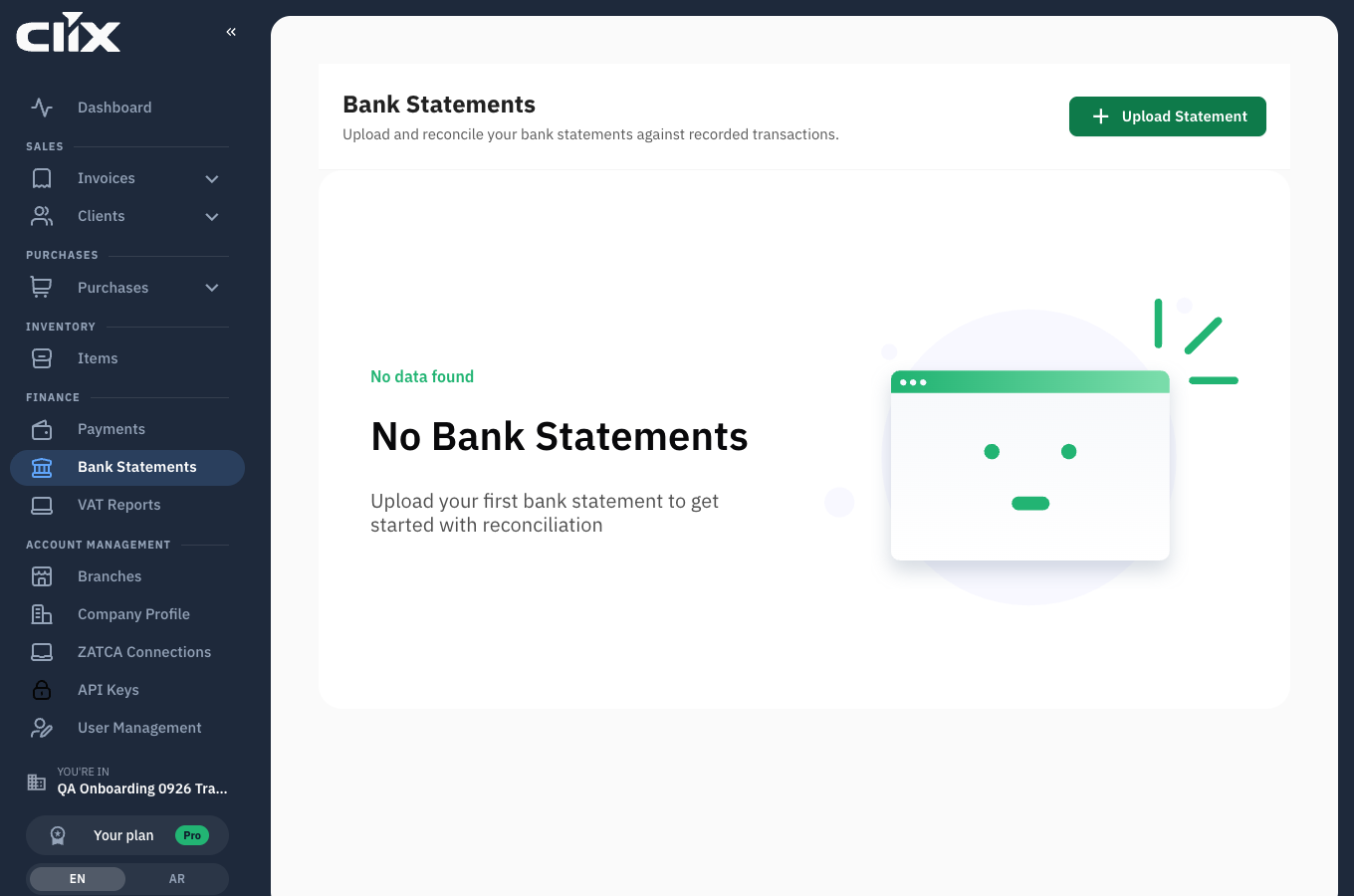
- Statements: one row per upload, with the account, period, lines imported, lines skipped, and a tick when the balance check passed.
- Upload Statement.
- A statement's lines: open a row to see its lines and their status.
Tasks
- Export the statement from your bank
- Upload a statement
- Map the columns the first time
- Re-map an account
- Close a line that is not invoice money
- Delete a statement
Export the statement from your bank
Clix reads CSV and Excel files. It does not read PDF. In your bank's business portal, export the account statement for the period as CSV if offered, otherwise Excel. CSV keeps Arabic text intact more reliably than Excel. Which format each bank offers varies; if yours gives only PDF, tell support.
Upload a statement
Who. Admin, Accountant.
- Click Upload Statement, the button at the top right of the page.
- In the dialog choose the Bank account. On a first upload the list is empty; Clix creates the account from the account number in the statement's header.
- Click Choose File, or drag the file onto the dialog.
- Click Upload. It stays disabled until a file is chosen.
Result. For an account that has been mapped before, the lines import at once and the row shows how many were imported and how many were skipped as duplicates. For a new account, the mapping step opens.
flowchart LR
    A[CSV or Excel file] --> B{Account mapped before?}
    B -->|no| C[Map the columns once]
    B -->|yes| D[Apply the saved mapping]
    C --> D
    D --> E{Balance column mapped?}
    E -->|yes| F{Running balance adds up?}
    F -->|no| G[Upload refused at the failing row<br/>nothing saved]
    F -->|yes| H[Skip lines already imported]
    E -->|no| H
    H --> I[Lines imported<br/>ready for reconciliation]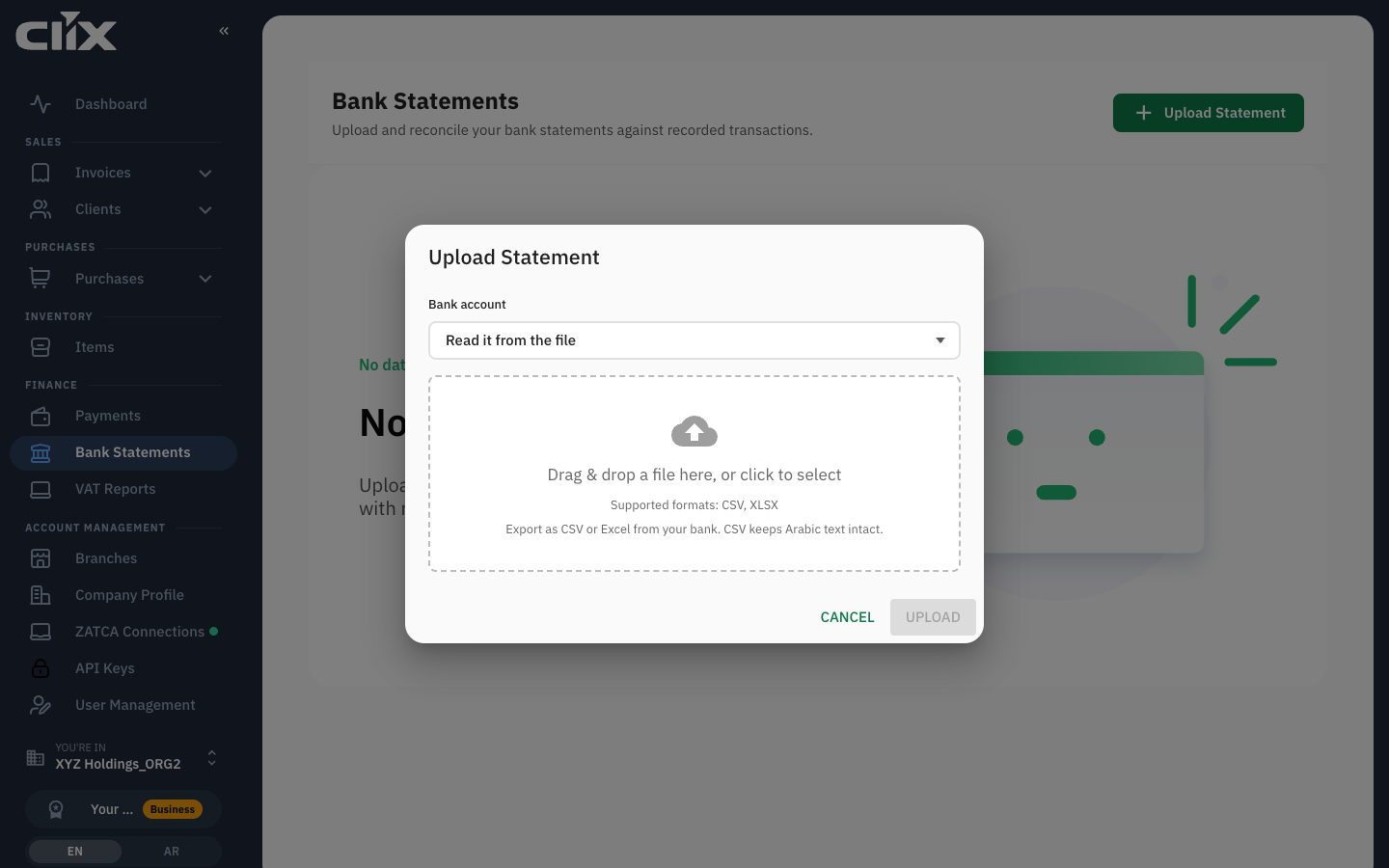
Map the columns the first time
Why. Every bank lays out its export differently and none publishes the layout. You tell Clix once, per account, and it remembers.
Who. Admin, Accountant.
- Check the header row Clix detected. If the file starts with account details above the real header, move the marker to the right row.
- For each Clix field, pick the file column:
- Posting date: the transaction date. A column of Hijri dates is labelled and cannot be chosen here.
- Description, and a second text column if the file has remarks.
- Amounts: either Debit and Credit columns, or one amount column; for one column, say whether negative means money out.
- Balance: the running balance. Optional, but map it if the file has it; it lets Clix prove the import.
- If the date format is ambiguous, such as
03-05-2026, choose it. Clix never guesses. - Check the three sample rows. They update as you map.
- Leave Save mapping for this account on and click Import.
Result. The lines import. The next upload for this account skips the mapping step.
If the upload is refused with a row number, the running balance did not add up at that row. Usually Debit and Credit are swapped in the mapping; fix the mapping and import again. Nothing was saved.
Re-map an account
Why. The bank changed its export layout.
Who. Admin.
- Open the account's settings from the statements list.
- Click Clear mapping.
Result. The next upload for that account asks for the mapping again. The old lines are untouched.
Close a line that is not invoice money
Why. Bank fees, salaries, tax payments, transfers between your own accounts and loan instalments are not payments on any invoice. Closing them with a reason is how the statement reaches "every line explained".
Who. Admin, Accountant, Create invoice, with a reconcile permission.
- Open the statement and find the line.
- Click Not an invoice and choose the reason: fee, salary, tax, own transfer, loan, other.
Result. The line's status becomes Not invoice and it leaves the open count. Reopen undoes it. This is the same action as on the Bank reconciliation tab.
Delete a statement
Who. Admin.
- Open the statement and click Delete.
Result. The statement and its lines are removed. A statement whose lines are matched to payments cannot be deleted; unmatch first.
Statuses
| On the statement | Meaning |
|---|---|
| Verified tick | every line's balance equalled the previous balance plus its amount |
| Not verified | the file had no balance column, so the check could not run |
| Imported n, skipped m | m lines already existed from an earlier upload and were left as they were |
| On a line | Meaning |
|---|---|
| Open | not explained yet |
| Matched | a payment links to it |
| Not invoice | closed with a reason |
Limits and plans
None. Upload is on every plan.
| Action | Admin | Accountant | Create invoice | View invoice |
|---|---|---|---|---|
| Upload, list, open statements | yes | yes | ||
| Close or reopen a line | yes | yes | yes | |
| Clear a mapping, delete a statement | yes |
Questions
I uploaded the same month twice. The second upload is refused as a duplicate file. If the second file overlaps the first by a few days, only the new lines import and the row shows the skipped count. Lines you already matched stay matched.
The file has a Hijri date column and a Gregorian one. Map the Gregorian one as the posting date. The Hijri column is kept on each line for display.
Arabic descriptions came out as symbols. Export as CSV instead of Excel and upload again. The duplicate check keeps the lines from doubling.
The bank only gives me a PDF. Clix cannot read it today. Ask the bank for CSV or Excel from the business portal, and tell support which bank it is.