Invoices
Where you issue sales invoices and follow what ZATCA said about each one. Owners and anyone with the Create invoice or Accountant role work here daily; View invoice users can read everything but change nothing.
What you see
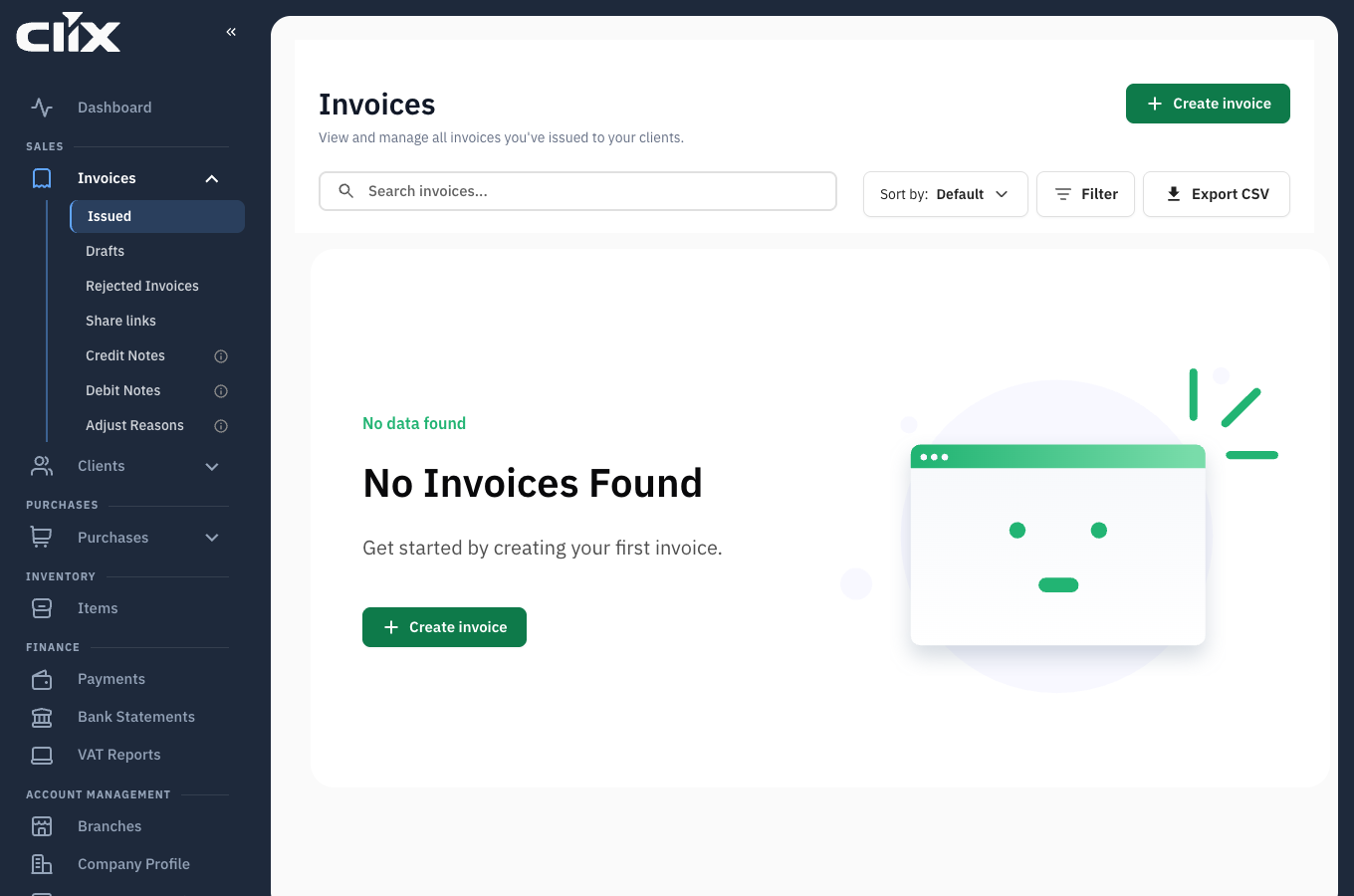
- All invoices: every submitted invoice, newest first, with its ZATCA status and payment status.
- Filters and search: by status, client, date, invoice number.
- Create invoice: the button, shown only to roles that may create.
- Drafts, Rejected and Share links: the three sub-pages in the tabs.
Tasks
- Create and submit an invoice
- Save a draft and finish it later
- Fix and resubmit a rejected invoice
- Download the PDF
- Email an invoice or share a link
- Attach a file to an invoice
- Set or change the due date
- Correct an issued invoice
Create and submit an invoice
Why. Every sale to a business needs a standard invoice cleared by ZATCA; every sale to a consumer needs a simplified invoice reported to ZATCA.
Who. Admin, Accountant, Create invoice.
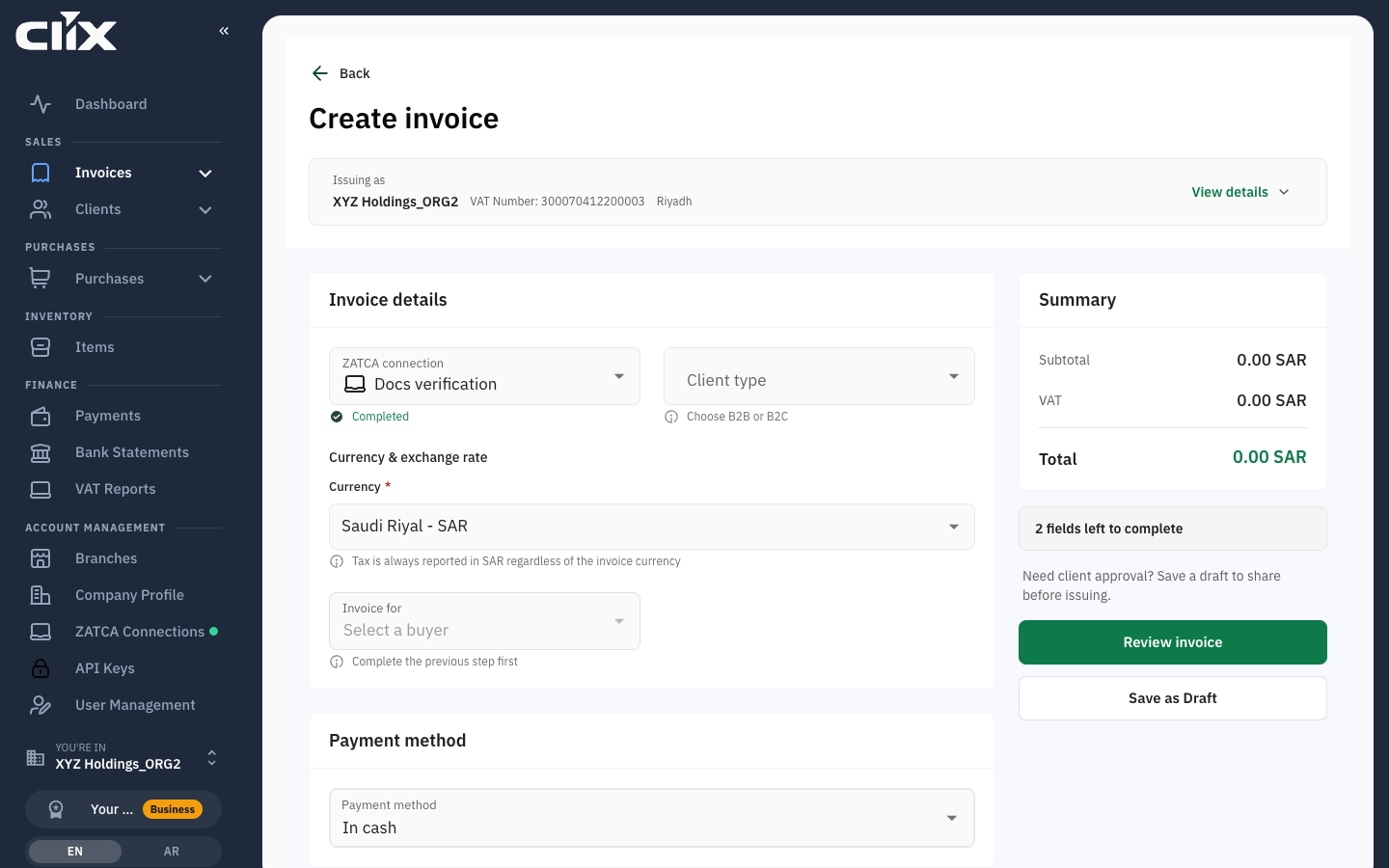
- Click Create invoice.
- Choose the device. Only devices with an active certificate are listed.
- Choose the client. Clix picks standard or simplified from the client's type; a device set to only one type only offers that type.
- Add lines: pick an item, set the quantity, adjust the price or VAT category if this sale differs from the item's defaults.
- Add a discount on a line or on the whole invoice if needed. Document-level charges work the same way.
- Set the issue date and, for a standard invoice, the supply date if it differs.
- Click Preview and check the totals and the client details.
- Click Submit.
Result. The invoice page opens with the ZATCA status: Cleared for standard, Reported for simplified. The invoice is now final.
Save a draft and finish it later
Who. Admin, Accountant, Create invoice.
- While creating, click Save as draft instead of Submit.
- Find it under Invoices → Drafts. Open it to edit, delete, download a draft PDF, or create a share link for a client to review before issue.
- When ready, open the draft and click Submit.
Result. The draft becomes an invoice and leaves the Drafts list. Drafts do not use an invoice number and do not count against the monthly quota until submitted.
Fix and resubmit a rejected invoice
Why. ZATCA rejected the invoice. Nothing is issued until it accepts.
Who. Admin, Accountant, Create invoice.
- Open Invoices → Rejected.
- Open the invoice and read the ZATCA response. It names the rule that failed, such as a missing buyer VAT number.
- Fix the cause: on the invoice itself where the field is editable, or on the client or item record it came from.
- Click Resubmit.
Result. The status changes to Cleared or Reported and the invoice leaves the Rejected list. Common rules and their fixes: ZATCA rejection codes.
Download the PDF
Who. All roles.
- Open the invoice and click Download PDF.
- The first request generates the file; wait a few seconds and click again if the button shows a spinner.
Result. A PDF/A-3 with the ZATCA XML embedded and the QR code printed. This is the document to give the client; a screenshot of the screen is not a valid invoice.
Email an invoice or share a link
Who. All roles.
- Email: open the invoice, click Share, enter one or more addresses, click Send. Clix sends the PDF from your organisation's name.
- Link: click Share link. Copy the link. It opens a public page with the invoice and a download button, no login needed. On the Free plan the page shows "Powered by Clix".
- Revoke a link: open Invoices → Share links, find it, click Revoke. The link stops working at once.
Attach a file to an invoice
Why. Keep the purchase order, delivery note or contract with the invoice.
Who. Admin, Accountant, Create invoice to upload; Admin to delete.
- Open the invoice and go to Attachments.
- Click Upload and choose the file.
Result. The file is listed with its name and date. Attachments are yours; they are not sent to ZATCA and not shown on the public share page.
Set or change the due date
Why. The due date decides when an unpaid invoice counts as late on the dashboard and in Payments.
Who. Admin, Accountant, Create invoice.
- Open the invoice.
- Click the due date and pick a date.
Result. The dashboard's overdue figure and the Payments page use the new date from now on.
Correct an issued invoice
An issued invoice cannot be edited or deleted; ZATCA has it. To reduce it, issue a credit note against it; to increase it, a debit note. See Credit and debit notes.
Statuses
Two independent statuses on every invoice.
stateDiagram-v2
    [*] --> Submitted: Issue invoice to ZATCA
    Submitted --> Cleared: standard, accepted
    Submitted --> Reported: simplified, accepted
    Submitted --> NotCleared: standard, rejected
    Submitted --> NotReported: simplified, rejected
    NotCleared --> Submitted: Fix and Resubmit to ZATCA
    NotReported --> Submitted: Fix and Resubmit to ZATCA
    Cleared --> [*]: final, correct only by note
    Reported --> [*]: final, correct only by note
ZATCA status
| Status | Meaning | What to do |
|---|---|---|
| Cleared | ZATCA approved this standard invoice; it is valid | nothing |
| Reported | ZATCA received this simplified invoice; it is valid | nothing |
| Not cleared | ZATCA rejected this standard invoice | fix and resubmit from Rejected |
| Not reported | ZATCA rejected this simplified invoice | fix and resubmit from Rejected |
Payment status
| Status | Meaning |
|---|---|
| Pending | nothing received yet |
| Partially paid | some payments recorded, balance remains |
| Paid | payments equal the invoice total |
| Overdue | balance remains and the due date has passed |
Payment status is set by what you record in Payments; it is not sent to ZATCA.
Limits and plans
| Free | Pro | Enterprise | |
|---|---|---|---|
| Invoices a month | 15 | 200 | unlimited |
| "Powered by Clix" on shared pages | shown | hidden | hidden |
When the monthly limit is reached, Submit shows an upgrade message instead of issuing. Drafts can still be saved. Details in Plans, limits and fair use.
Questions
Why does my invoice have both a Cleared badge and a Pending badge? They answer different questions. Cleared is ZATCA's verdict on the document. Pending is whether the client has paid.
Can I delete an invoice I issued by mistake? No. Issue a credit note for the full amount. The invoice and the credit note both stay in the record, which is what ZATCA requires.
The client is a business but I only have their name. Ask for their VAT number. A standard invoice without a buyer VAT number is rejected. If they are not VAT registered, invoice them as a consumer with a simplified invoice.
Why is the Create invoice button missing? Your role is View invoice, or the organisation has no active device. Ask an Admin.
Does a draft count against my 15 invoices? No. Only submitted invoices count.