1. Create your account and organisation
At the end of this step you have a Clix login and an organisation you administer. An organisation is one legal business with one VAT registration. If you run several businesses, you create one organisation each and switch between them later.
Before you start
- Your business email address.
- Your commercial registration (CR) number and VAT registration number. You enter them in the next step, so have them nearby.
Sign up
- Open app.goclix.ai. On the Login page click Create Account. (Sign In With Google works too; then skip to the next section.)
- On Signup, enter your Email, a Password and Confirm Password, then your First Name, Last Name and Phone number.
- Submit the form and open the confirmation email.
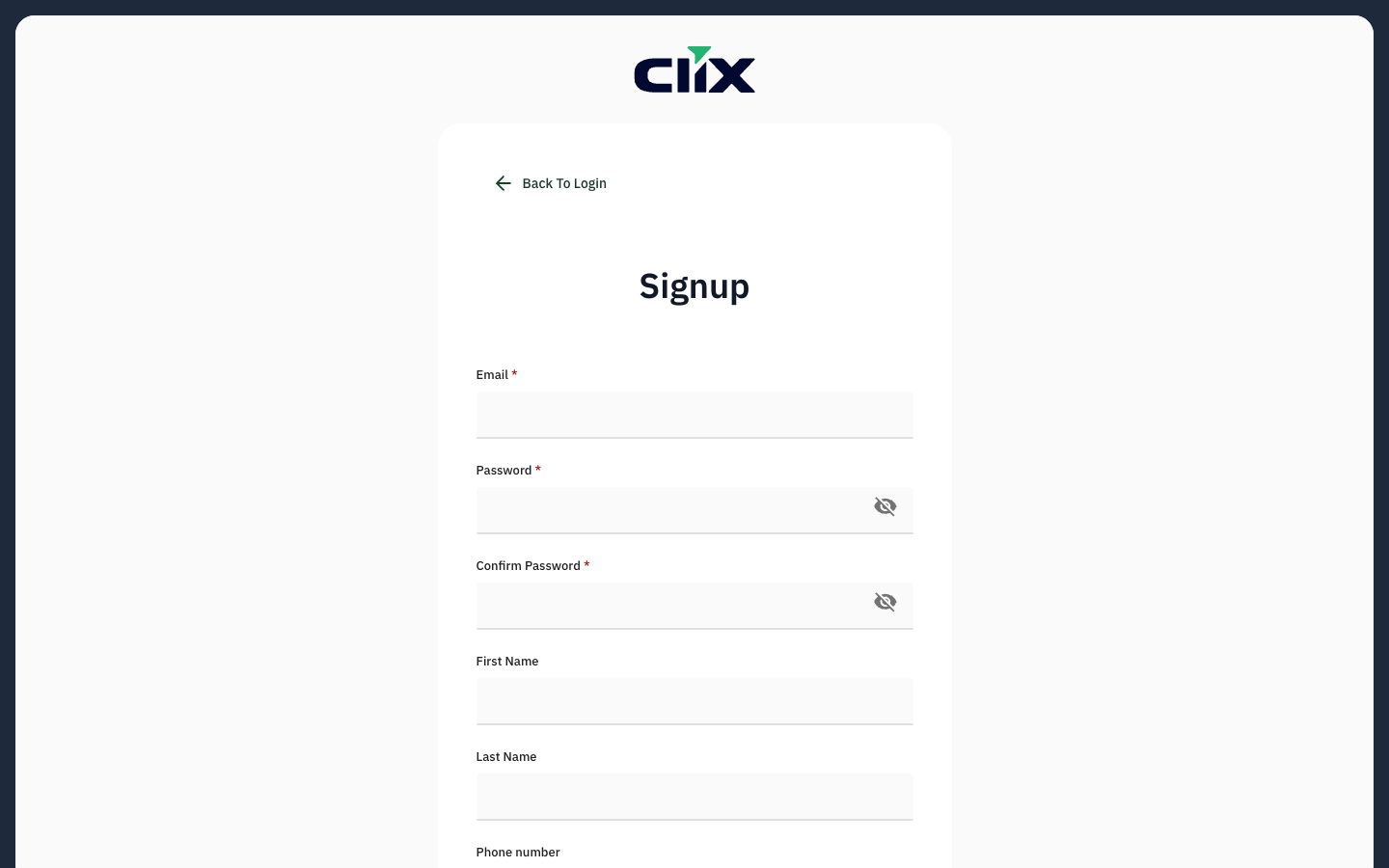
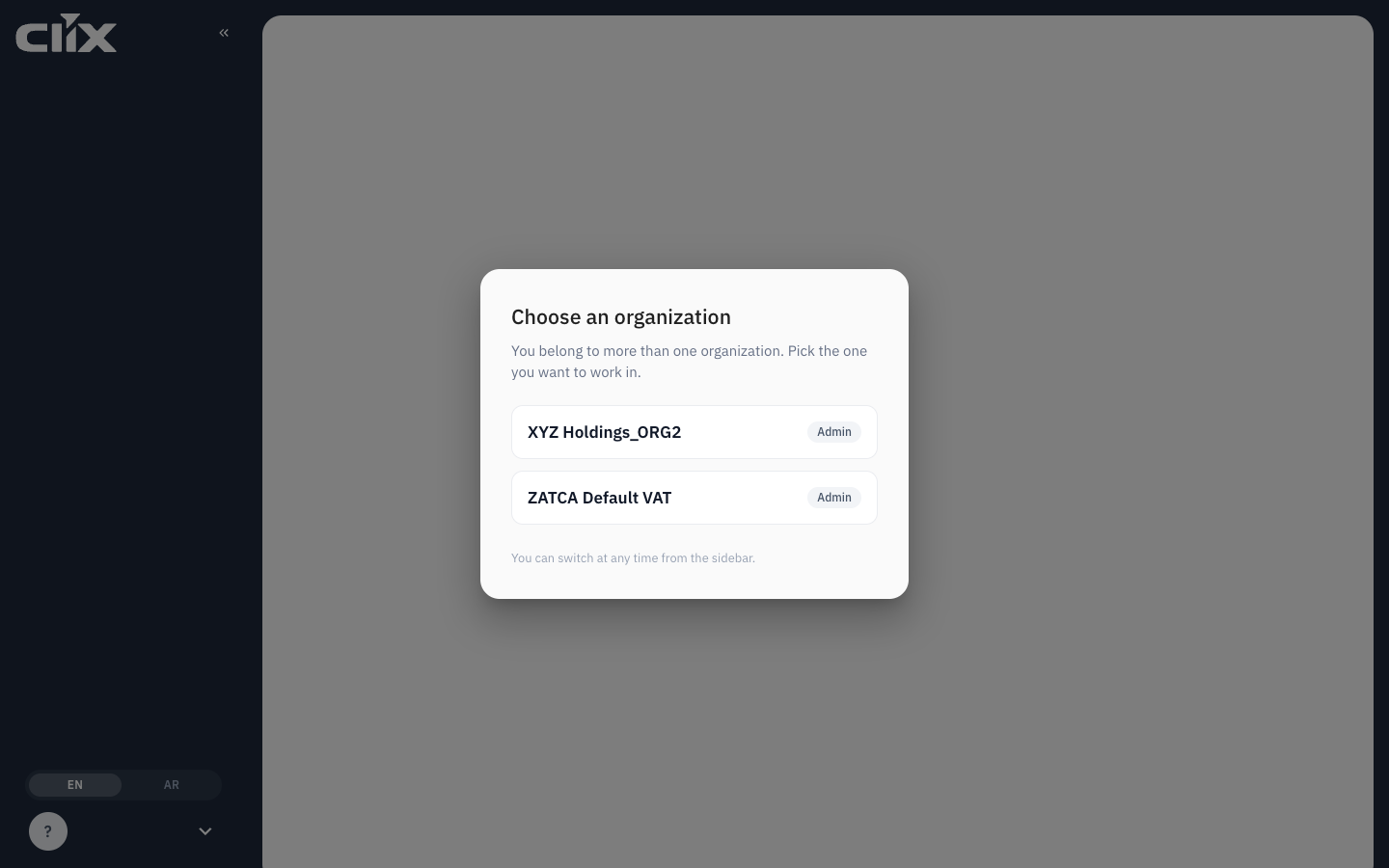
Result. You are signed in. A new account with no organisation lands on the join-or-create screen; an account that already belongs to organisations sees Choose an organization instead, shown below.
Create the organisation
If a colleague already set up your business on Clix, do not create a second one. Ask them to invite you; see Invite your team. Otherwise:
- Choose Create an organisation.
- Enter the business name as it appears on your commercial registration.
- Click Continue.
Result. The setup wizard opens on Your details. You are the organisation's first Admin, the role that can change everything, including who else gets in.
What just happened
Clix created an organisation and made your account its Admin. Nothing has been sent to ZATCA. The organisation has no device yet, so it cannot issue invoices; that comes in step 3.
Next: Set up your business