Credit and debit notes
A cleared invoice cannot be edited or deleted. That is ZATCA's rule, not a limitation of Clix — the invoice is a tax record the moment it clears. You correct it by issuing a note against it.
Who. Admin, Accountant and Create invoice.
| Note | Use it to | Effect |
|---|---|---|
| Credit note | Reduce what the buyer owes — a return, a discount granted late, an overcharge, a cancellation | Decreases the original |
| Debit note | Increase what the buyer owes — an undercharge, extra goods, a missed fee | Increases the original |
flowchart LR
    A[Cleared invoice<br/>cannot be edited or deleted] -->|buyer owes less| B[Credit note]
    A -->|buyer owes more| C[Debit note]
    B --> D{ZATCA}
    C --> D
    D -->|standard| E[Cleared]
    D -->|simplified| F[Reported]
    B -->|full amount| G["Invoice cancelled in effect,<br/>both documents stay"]
What you see
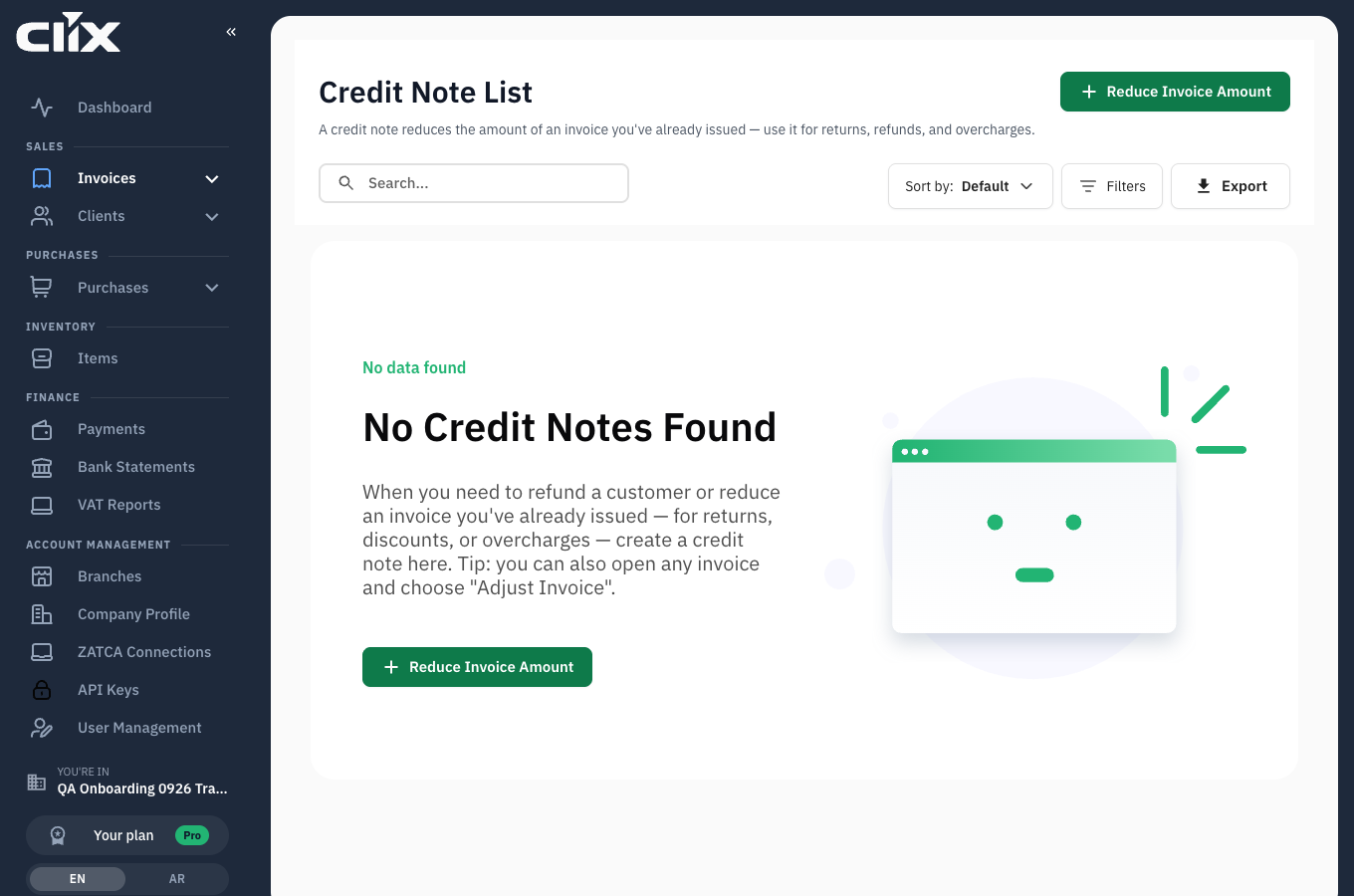
Credit and debit notes live under Invoices in the sidebar and each has its own list, with the same statuses and ZATCA flow as invoices.
Tasks
Issue a credit note
Why. The buyer owes less than the invoice says.
Who. Admin, Accountant, Create invoice.
- Open Credit Notes and start a new one.
- Choose the original invoice it corrects.
- Choose the adjustment reason — ZATCA requires one.
- Enter the lines or the amount being credited. A full credit cancels the invoice in effect; a partial credit reduces it.
- Submit.
Result. The note goes through the same ZATCA flow as an invoice — cleared for standard, reported for simplified — and references the original.
Issue a debit note
Why. The buyer owes more than the invoice says.
Who. Admin, Accountant, Create invoice.
The steps are the credit note's, in the other direction: pick the original, give the reason, enter the additional amount, submit.
Cancel an invoice entirely
There is no delete. Issue a credit note for the full amount, with the reason for cancellation. The original stays in the record — that is the point of the rule — and the pair nets to nothing.
Adjustment reasons
The reason is a ZATCA field, not a comment for your files. Pick the one that genuinely describes what happened; you configure the available reasons under Setup → Reasons.
What this means for your VAT
Notes change the period they are issued in, not the period of the original. A credit note in October against a September invoice reduces October's output VAT. See VAT reports.