3. Connect a device to ZATCA
At the end of this step your organisation has a ZATCA connection that reads Active. Every invoice is issued by a connection, and ZATCA accepts invoices only from one holding a production certificate. Clix does the certificate work; you provide one code from the ZATCA portal. The whole step takes about ten minutes.
Before you start
- Access to the ZATCA Fatoora portal for your business.
- A Fatoora code (OTP) from that portal. On the portal, choose Onboard new solution unit/device, choose how many devices, and it shows one six-digit code per device, valid for one hour.
What a connection is
A connection is a point of issue: a shop till, an ERP, or simply "the office". The app calls each one a device in some places and a connection in others; they are the same thing. A small business usually needs one. You choose who it may invoice:
| Choice | Issues | ZATCA path |
|---|---|---|
| Businesses | standard tax invoices to companies (B2B) | clearance: ZATCA approves each invoice before it is valid |
| Consumers | simplified invoices, like receipts (B2C) | reporting: you issue, then report to ZATCA within 24 hours |
| Both | either | each invoice takes its own path |
If you sell to both, choose Both. See ZATCA e-invoicing in Clix for what clearance and reporting mean.
Add the connection
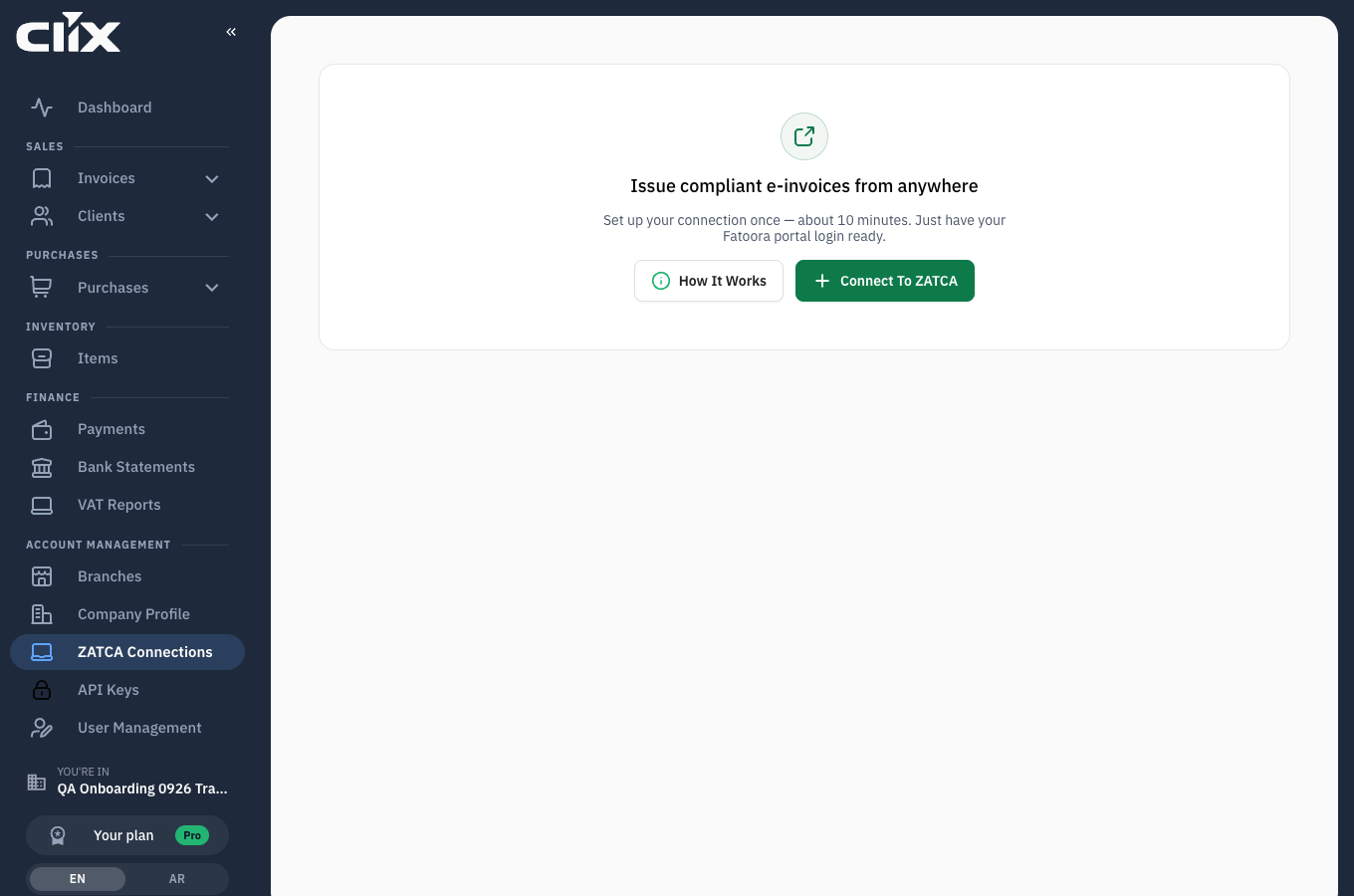
- In the left navigation open ZATCA Connections. The sidebar entry also shows the connection state once one exists, such as "All connections active".
- On a new organisation the page shows "Issue compliant e-invoices from anywhere" with two buttons. Click Connect to ZATCA. (How it works opens a three-step explainer; Skip closes it.)
- Enter a Connection name, for your reference, such as "Main store".
- Under Who will you invoice? choose Businesses, Consumers or Both.
- Under Where is this connection? leave Enter location and type the city, such as "Riyadh". If you have branches, choose Select a branch instead; the city must match the branch.
- Click Continue.
- On Enter your Fatoora code, type the six digits from the portal.
- Click Connect.
Result. The connection appears in the Connections table. Clix runs the certificate chain ZATCA requires, which takes under a minute. When it is done the status reads Active: "Connected to ZATCA and ready to issue compliant invoices."
sequenceDiagram
    participant You
    participant Clix
    participant ZATCA
    You->>Clix: Connection name, who you invoice, Fatoora code
    Clix->>ZATCA: Signing request + code
    ZATCA-->>Clix: Compliance certificate
    Clix->>ZATCA: Sample invoices (compliance check)
    ZATCA-->>Clix: Production certificate
    Clix-->>You: Status Active
If the page says the connection failed
Reload the page before doing anything else. On some browsers the page stops watching the certificate chain too early and shows "Connection failed" and Unknown Status although the connection completed. After a reload it reads Active. If it still does not, the code has usually expired or was already used: get a fresh one from the portal and connect again. More cases in Certificate and device problems.
Check the certificate
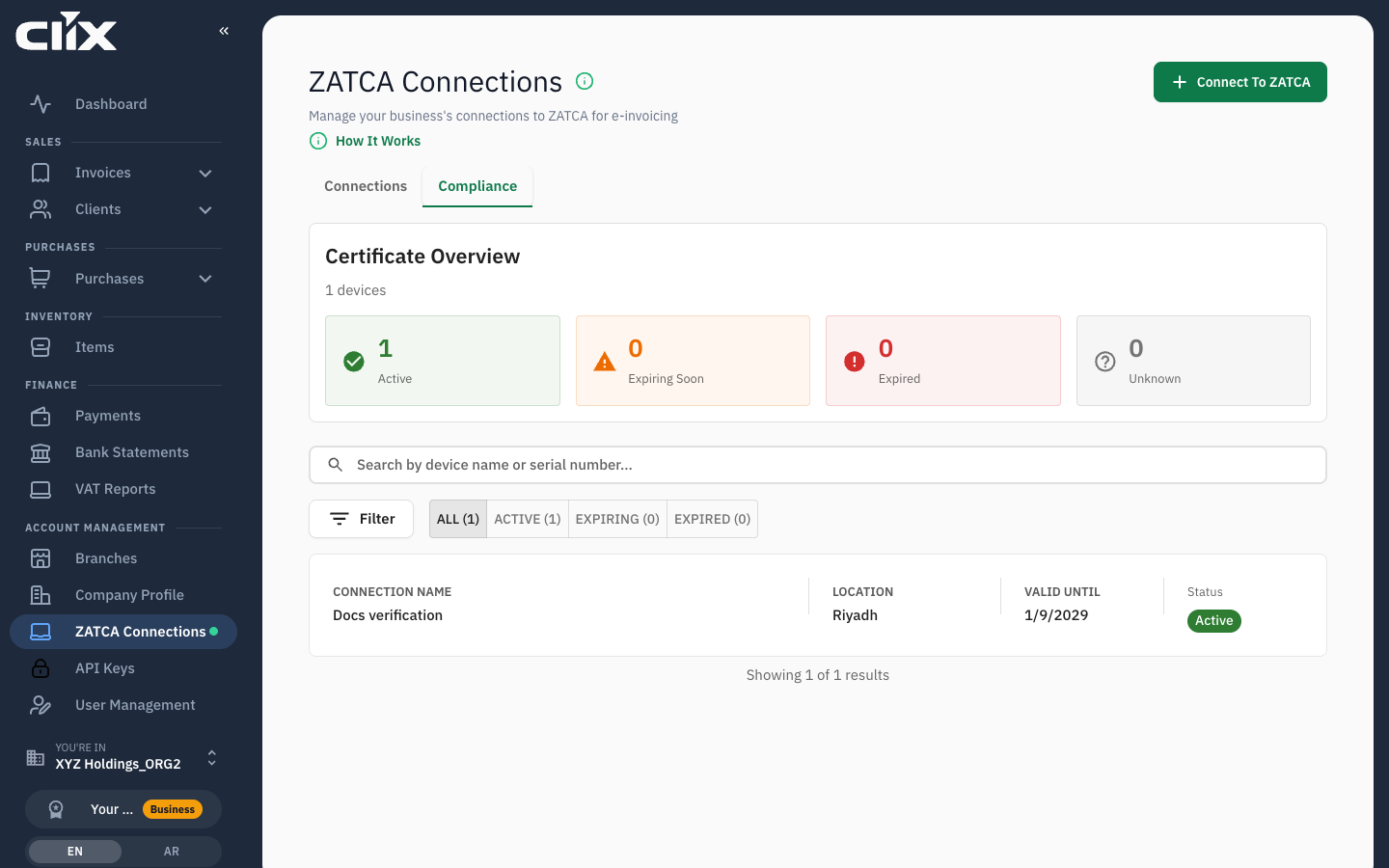
- Open the Compliance tab on the same page.
- The Certificate Overview counts your connections as Active, Expiring Soon, Expired or Unknown, and lists each with its expiry date.
What just happened
ZATCA now knows this connection belongs to your VAT number and will accept invoices signed by it. The certificate expires; Clix warns you on the dashboard 30 days before, and renewing is the same steps with a new code.