2. Set up your business
At the end of this step every invoice you issue carries the legal name, VAT number and address ZATCA requires. The setup wizard collects them in two screens; you can change them later under Company Profile.
Before you start
- Commercial registration (CR) number, or another business ID ZATCA accepts.
- VAT registration number, 15 digits, starting and ending in 3.
- The registered address: building number, street, district, city, postal code.
Business information
- On the Business information step, enter the legal business name in English and in Arabic. The Arabic name is printed on the tax invoice.
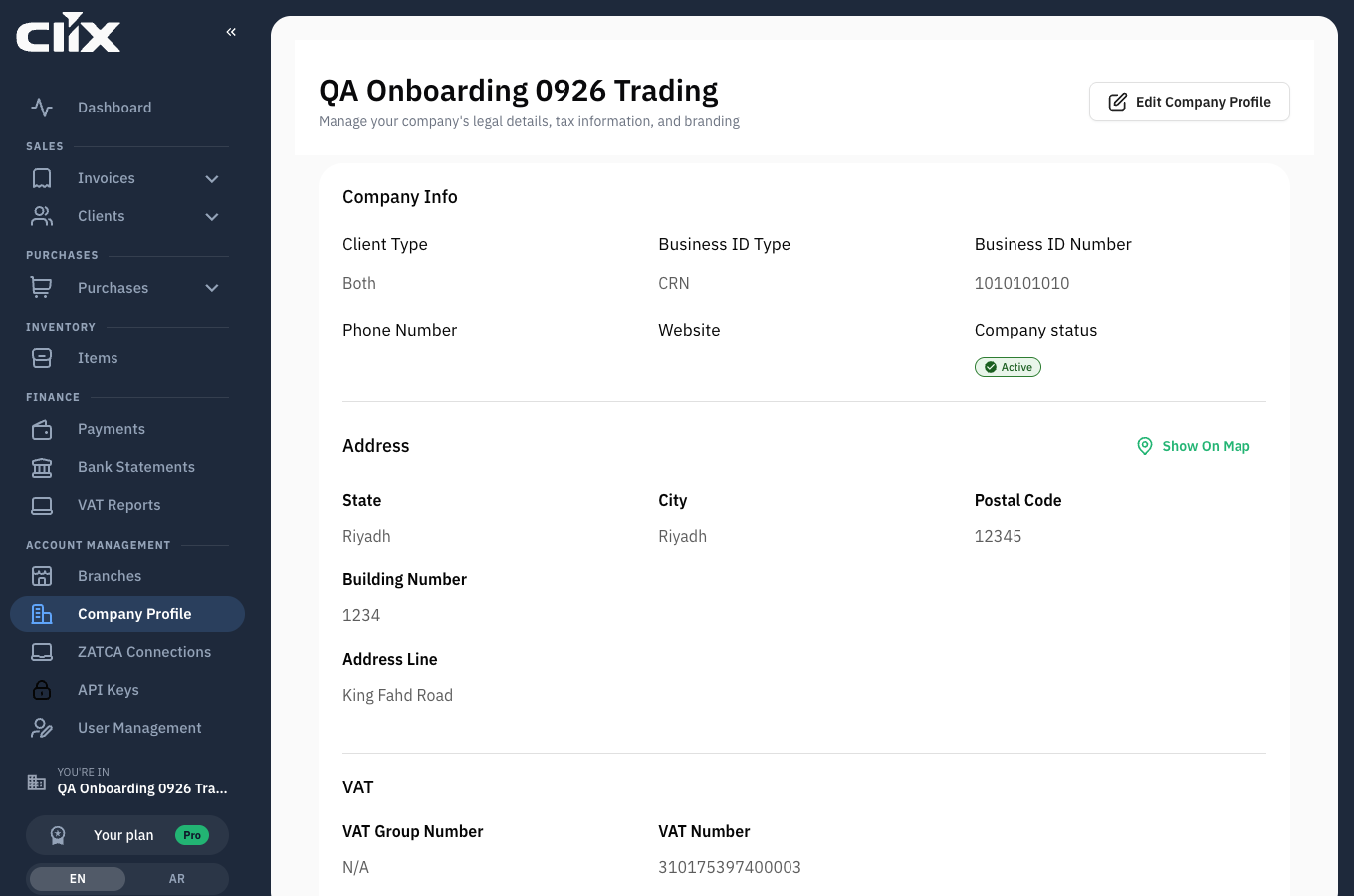
- Choose the Business ID Type and enter the Business ID Number, for example the CR number.
- Enter the VAT Number. If your business is part of a VAT group, enter the VAT Group Number as well.
- Choose who you sell to: businesses, consumers or both.
- Click Next.
Business address
- Enter the national address: Building Number, Address Line, district, City, State, Postal Code. ZATCA validates the building number (4 digits) and postal code (5 digits).
- Click Next.
Result. The wizard moves to Choose plan, then Connect to ZATCA. You can stay on the Free plan for now; step 7 covers plans, and step 3 covers the connection.
Check it, and add a logo
Everything you entered is under Company Profile in the left navigation, in four blocks: Logo, Business information, VAT and Address. An Admin can edit any of them; changes apply to invoices issued after the change. The logo prints on invoice PDFs and on the public page a client sees when you share an invoice. See Organisation profile for the edit steps.
What just happened
Clix stored the identity ZATCA checks on every invoice. A wrong VAT number here means every invoice is rejected in step 5, so check it once more against your VAT certificate.