Items
Your catalogue. An item carries the name, price and VAT treatment that an invoice line starts from, so you set it once instead of on every invoice.
Who. Admin, Accountant and Create invoice can add and edit. View invoice can read.
What you see
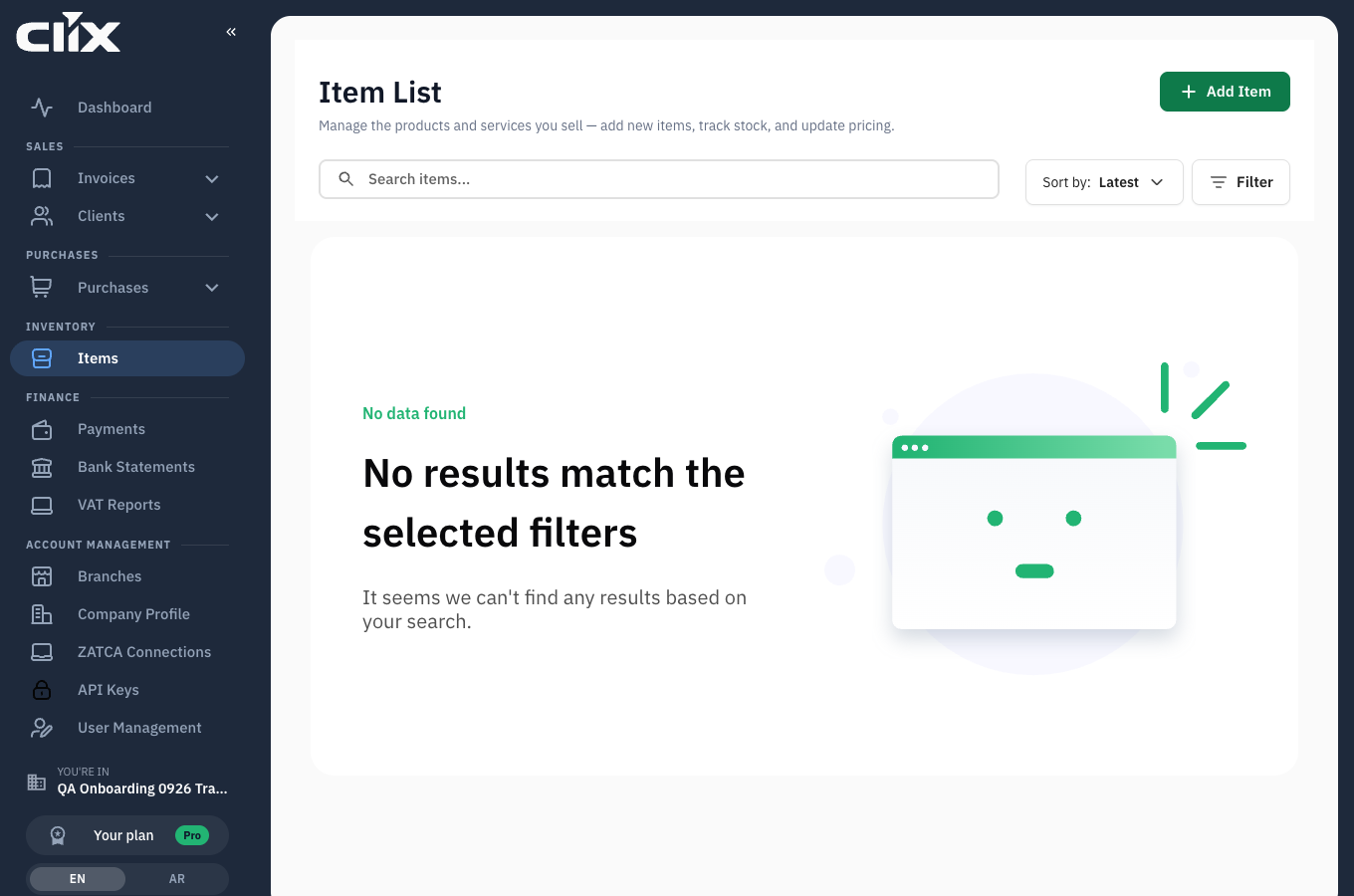
- Item List: every item, newest first.
- Add Item: opens the item form.
- Sort by and Filter: order the list and narrow it.
Tasks
Add an item
Why. So invoice lines are consistent and fast.
Who. Admin, Accountant, Create invoice.
- Click Add Item.
- Enter the name — and the Arabic name if you invoice in Arabic.
- Set the cost price and the selling price.
- Enter the SKU (stock keeping unit) if you track one.
- Choose the VAT category and rate.
- Choose a category if you group items.
- Save.
Result. The item appears in the list and in the item picker on the invoice form.
Selling price and cost price
Clix expects the selling price to be greater than or equal to the cost price. Equal is allowed — clearance and at-cost sales are legitimate.
Set the VAT treatment
Why. ZATCA needs the right VAT category per line, not just a rate.
Who. Admin, Accountant, Create invoice.
Choose the category that matches the sale: standard rated, zero rated, or exempt. Exempt and zero-rated lines need a reason on the invoice — see Invoice types.
You can override the rate on a single invoice line without changing the item.
Use an item on an invoice
On the invoice form, pick the item in the line; the price and VAT fill in. Change the quantity, and the price or VAT category if this sale differs. See Invoices.
Stock
An item either has unlimited stock — no quantity tracked — or finite stock, which needs both a current stock quantity and an alert quantity. The two go together: an item with counted stock and no alert quantity is rejected.
Item categories
Categories group items for filtering and reporting. They are optional and have no effect on the invoice or on ZATCA.