Payments
One place for every payment: money received on sales invoices and money paid on purchase invoices. The owner uses it to see who is late; the accountant uses it to close the month against the bank statement.
What you see
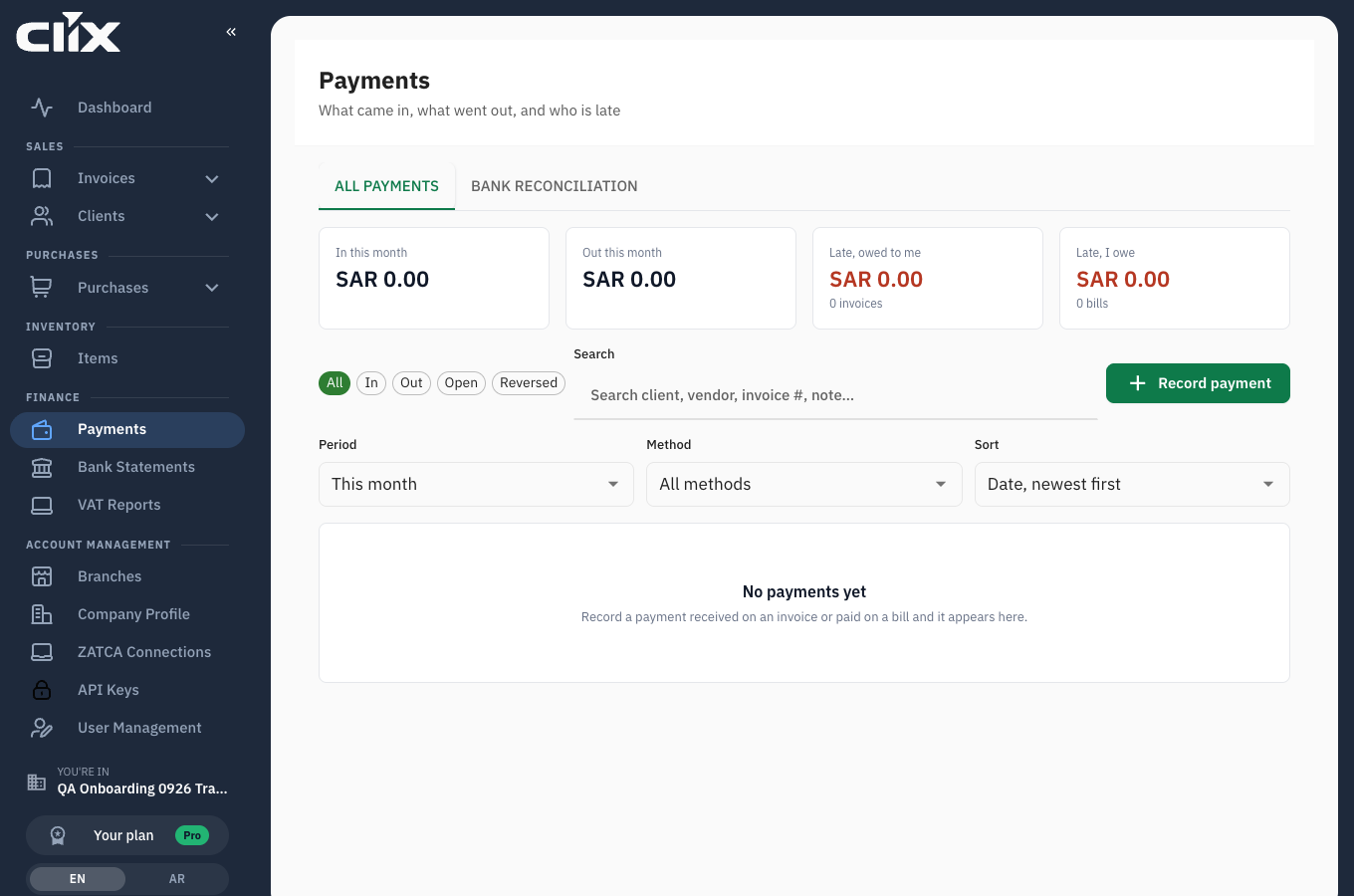
- Tiles: money in this period, money out, what is late and owed to you, what is late and you owe.
- Chips: All, In, Out, Open (not yet matched to a bank line), Reversed.
- Search and the Period, Method and Sort selectors. Period defaults to this month; sort to newest first.
- The list: one row per payment, amount signed, with its match state.
- Record payment.
- Bank reconciliation: the second tab. It appears only for roles that may reconcile.
Tasks
- Record a payment received
- Record a payment made on a bill
- Send a receipt
- Reverse a payment
- Match a payment to a bank line
- Work through the bank statement
Record a payment received
Why. The invoice's payment status and the dashboard's outstanding figure come only from what you record here.
Who. Admin, Accountant, Create invoice.
- Click Record payment.
- Leave the direction on Received.
- Choose the invoice. Only invoices with a balance are offered. The remaining balance prefills the amount.
- Set the amount if the client paid part, the date the money arrived, and the method.
- Add a note if useful, for example the transfer reference.
- Click Save.
Result. The row appears in the list. The invoice's status becomes Partially paid or Paid. An amount above the remaining balance is refused.
Record a payment made on a bill
Who. Admin, Accountant, Create invoice.
Same as above with the direction on Paid. Choose the purchase invoice. The bill's status becomes Partially paid or Paid. See Purchases and vendors for recording the bill itself.
Send a receipt
Who. Admin, Accountant, Create invoice.
- Open the payment row and click Send receipt.
- Confirm the client's email.
Result. The client receives a receipt for that payment with the invoice number and the remaining balance.
Reverse a payment
Why. A payment was recorded on the wrong invoice, for the wrong amount, or never arrived. Payments are not deleted; they are reversed so the record shows what happened.
Who. Admin, Accountant, Create invoice.
- Open the payment row and click Reverse.
- Enter the reason.
- Click Reverse.
Result. The row stays in the list, struck through, with the reason. The invoice's balance is restored. If the payment was matched to a bank line, the line returns to Open. A reversed payment cannot be reversed again.
Match a payment to a bank line
Why. A matched payment is proven by the bank statement.
Who. Admin, Accountant, Create invoice, when they hold a reconcile permission.
- Open a payment whose row reads not matched.
- Click Match. Clix lists the open bank lines of the same direction whose amount and date fit.
- Pick the line and click Link.
Result. The row reads matched with the bank line's date. Unmatch on the row undoes it.
Work through the bank statement
Why. Month end means every line on the statement is explained: matched to a payment or closed as something that is not invoice money.
Who. Admin, Accountant.
- Open the Bank reconciliation tab.
- Choose the statement. The header shows the counts: Open, Matched, Not invoice.
- For each open line, Clix shows up to three suggested invoices or bills. Click Link on the right one; a payment is created and the line closes.
- If the line is a bank fee, salary, tax payment, transfer between your own accounts or a loan, click Not an invoice and pick the reason.
- If nothing fits, click Find another and search.
Result. Open counts down to zero. The month is reconciled when it reads zero. Uploading statements is in Bank statements.
flowchart TD
    A[Upload statement] --> B[Open line]
    B --> C{Suggestion fits?}
    C -->|yes, Link| D[Payment created and matched]
    C -->|fee, salary, tax, own transfer, loan| E[Not an invoice, with reason]
    C -->|no| F[Find another invoice or bill]
    F --> D
    D --> G{Open count = 0?}
    E --> G
    G -->|no| B
G -->|yes| H[Month reconciled]Statuses
On a payment row
| State | Meaning |
|---|---|
| matched | linked to a bank line |
| not matched | no bank line yet |
| reversed | undone; excluded from every total |
On a bank line
| Status | Meaning |
|---|---|
| Open | not explained yet |
| Matched | one or more payments link to it |
| Not invoice | closed with a reason; not money for any invoice |
Limits and plans
None. Payments and reconciliation are on every plan.
Who can do what:
| Action | Admin | Accountant | Create invoice | View invoice |
|---|---|---|---|---|
| See payments and tiles | yes | yes | yes | yes |
| Record, reverse, match, receipt | yes | yes | yes | |
| Bank reconciliation tab | yes | yes | ||
| Delete a payment (mobile app only) | yes |
Questions
The client paid three invoices with one transfer. Record three payments, one per invoice, each for its share, and match all three to the same bank line. The suggestions do this for you when the line amount equals the sum of two open invoices.
The client paid more than the invoice. Clix refuses an amount above the balance. Record the balance, and record the rest when the next invoice exists, or refund it. Advance payments are not supported yet.
Why is Overdue on the dashboard different from what I expected? Overdue means a balance remains and the invoice's due date has passed. An invoice without a due date is never overdue. Set one on the invoice.
Can I attach the transfer proof to a payment? Not yet. The Record payment form shows where it will go and says it arrives in a later release. Until then keep the proof with the bank statement line you match the payment to.
I recorded a payment on a credit note. That is a refund you paid out. It is excluded from money in and from collected totals.