5. Issue your first invoice
At the end of this step ZATCA has cleared or reported one invoice from your organisation, and you have its PDF with the QR code.
Before you start
- A ZATCA connection with status Active (step 3).
- A client and an item (step 4).
What happens to an invoice
flowchart LR
    A[Create invoice] --> B[Review invoice]
    B --> C{Issue invoice to ZATCA}
    C -->|business client| D[Clearance]
    C -->|consumer| E[Reporting]
    D -->|accepted| F[Cleared]
    E -->|accepted| G[Reported]
    D -->|rejected| H[Not cleared]
    E -->|rejected| I[Not reported]
    H --> J[Fix and resubmit]
    I --> J
    J --> C
    F --> K[PDF with QR code]
    G --> K
Create the invoice
- Open Invoices and click Create invoice.
- Under Invoice details, choose the ZATCA connection that issues it. Only active connections are listed.
- Choose the Client type: B2B for a business, B2C for a consumer. A business client gets a standard invoice; a consumer, a simplified one.
- Choose the client in Select a buyer. For B2C this is optional.
- Leave Currency on SAR unless you invoice in another currency. Tax is always reported in SAR.
- Choose the Payment method. The default is In cash.
- Under Invoice items, choose Products or Services, then click Add/Edit Items. The Select items panel lists your catalogue; tick the items, set the quantity, and click Add selected. Add new Item creates one without leaving the invoice.
- Additional invoice options holds a document-level discount and a note, when needed.
- Check the Summary on the right: subtotal, VAT, total. The counter above the buttons tells you how many fields are still needed; Go to first issue jumps to the next one.
- Click Review invoice.
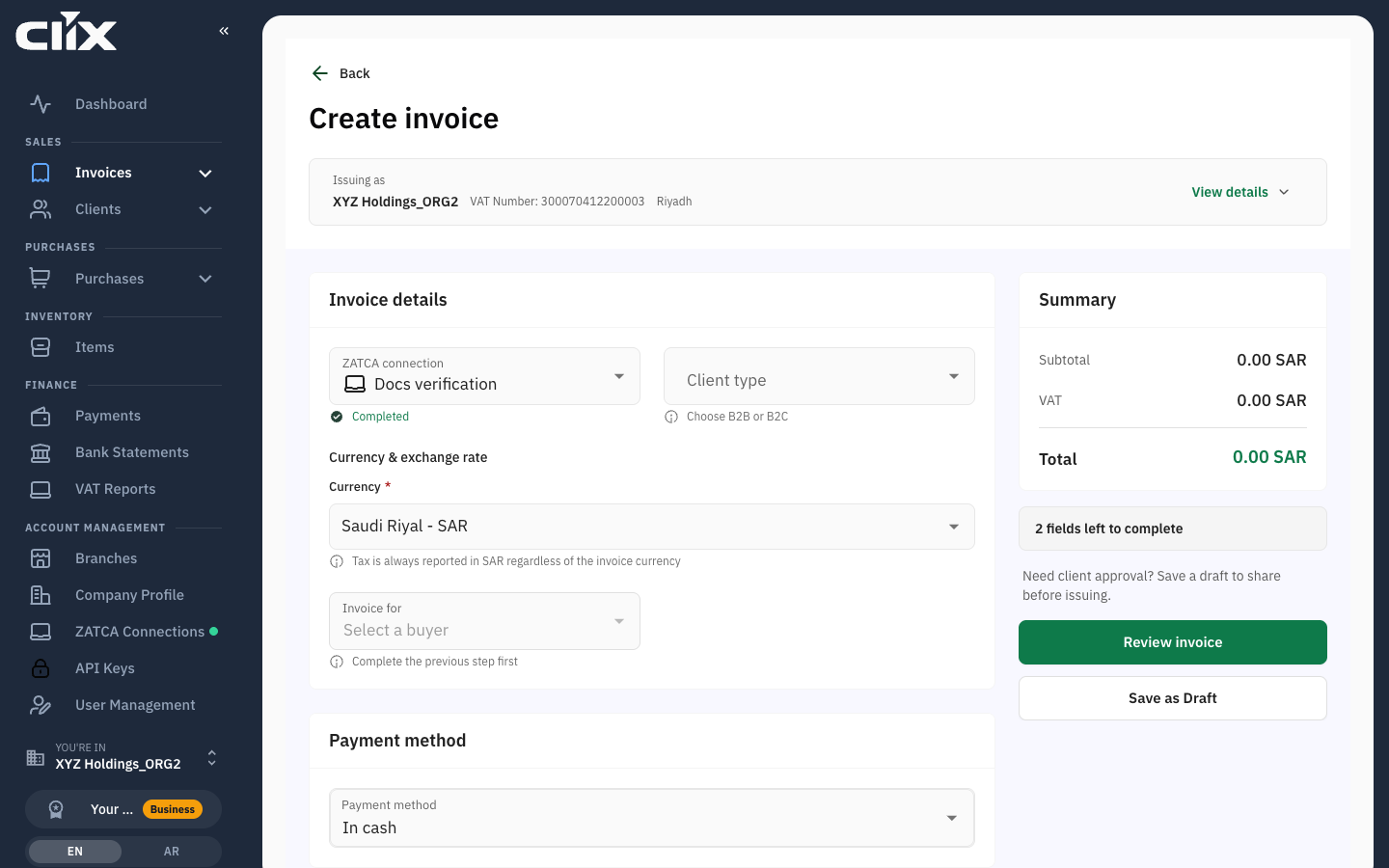
If you are not ready, click Save as Draft. Drafts live under Invoices → Drafts and have not been sent anywhere. Drafts do not use an invoice number and do not count against the monthly quota.
Send it to ZATCA
- On the review step, check the invoice as the client will see it.
- Click Issue invoice to ZATCA.
- Wait a few seconds. The invoice opens with its ZATCA status.
Result. For a standard invoice the status reads Cleared: ZATCA validated it and stamped it. For a simplified invoice it reads Reported. Either way the invoice is now final and cannot be edited; a mistake is corrected with a credit note, not by editing.
If the status reads Not cleared or Not reported, ZATCA rejected it. Open Invoices → Rejected, read the reason, fix the cause, and use Fix & Resubmit to ZATCA. The common causes are in ZATCA rejection codes. On the sandbox every invoice from your own VAT number is rejected with certificate-permissions; that is the sandbox's shared certificate, not your invoice.
Get the PDF and share it
- On the invoice, click Download PDF. Clix generates a PDF/A-3 with the embedded XML and the QR code ZATCA requires.
- To email it, click Share and enter the address.
- To give the client a link instead, click Share link. The link opens a public page with the invoice and a download button; you can revoke it later under Invoices → Share links.
What just happened
Your connection signed the invoice, Clix sent it to ZATCA, and ZATCA answered. The invoice number is now used and the sequence continues from it. On the Free plan you can issue 15 invoices a month; the dashboard shows how many remain.
Next: Invite your team