Search
Clix has two ways to search. Press Cmd-K (Mac) or Ctrl-K (Windows) anywhere to search invoices, clients and items at once. Or type into the search box at the top of a list to narrow that list.
Both search only the organisation you are working in. To search another organisation, switch to it first from the sidebar.
Search everything with Cmd-K
Why. You don't have to know which screen a record lives on before you look for it.
Who. Everyone signed in.
- Press Cmd-K or Ctrl-K on any page. The shortcut does nothing while your cursor is in a form field, so it never interrupts an invoice you are typing.
- Type at least two characters. Results arrive in three groups: Invoices, Clients and Items, up to five of each, closest match first.
- Use the Up and Down arrows to move through the results, and press Enter to open one. Or click it.
- Press Esc to close.
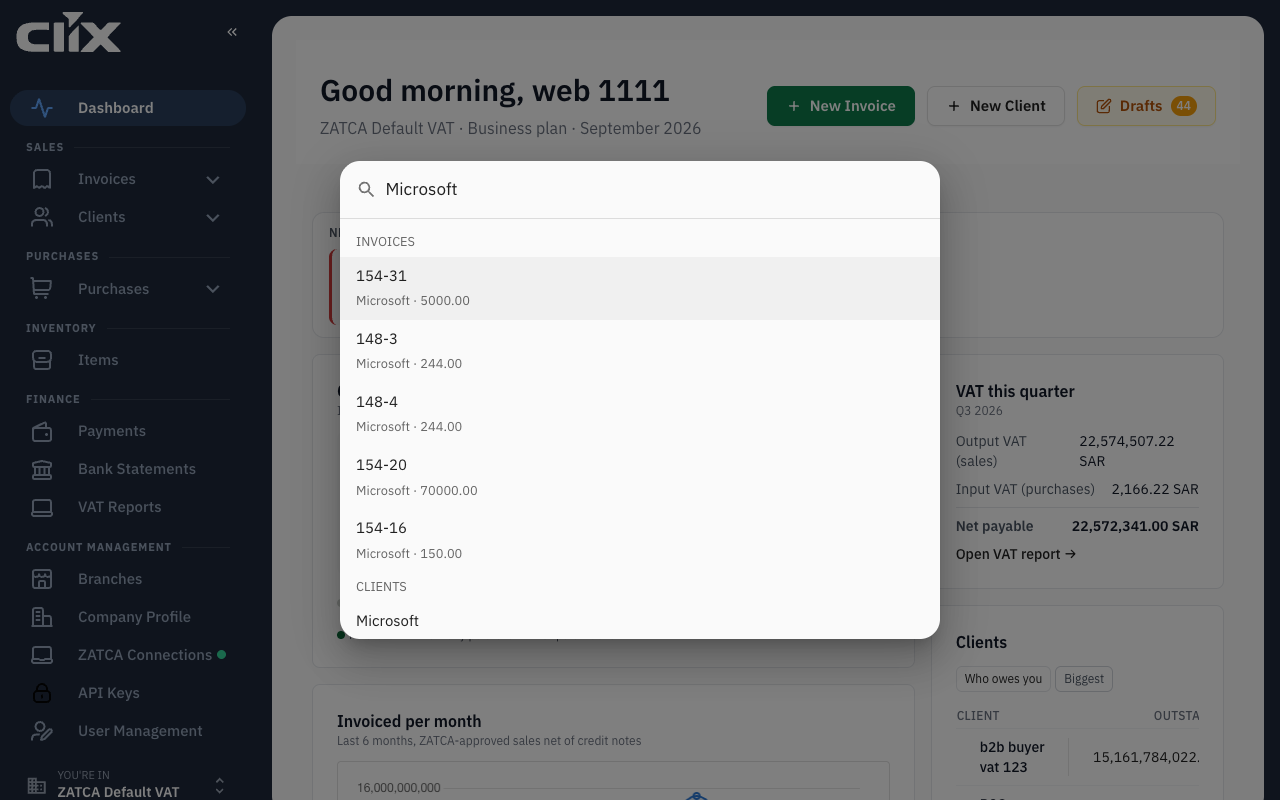
Result. The record's page opens: an invoice opens the invoice, a client opens the client's profile, and an item opens the item's details. Each result shows a second line to tell similar rows apart:
| Group | Second line |
|---|---|
| Invoices | Client and amount |
| Clients | VAT number |
| Items | Unit of measure |
A new invoice, client or item can take up to 30 seconds to appear here. The list screens show it at once.
If the search itself fails, the palette says "Search isn't working right now. Try again." Click Retry.
Search a list
Every list has a search box at the top. Some lists search as you type; the others wait for Enter:
| List | When it searches | Search kept in the page address |
|---|---|---|
| Clients | As you type | Yes |
| Payments | As you type | No |
| Invoices | When you press Enter | Yes |
| Items | When you press Enter | Yes |
| Purchases | When you press Enter | Yes |
| Vendors | When you press Enter | Yes |
- Searching always starts from page 1.
- The count under the list tells you how many rows match.
- Where the search is kept in the page address, you can reload the page or bookmark it and the search is still there.
- Delete the text in the box to show the full list again.
When nothing matches, Clix says so and names what you typed: "No results for “Extra Trading”". If the search itself fails, you see an error with a Retry button instead of an empty list.
What each search matches
| List | Matches |
|---|---|
| Invoices | Invoice number (the start of it is enough, so INV-10 finds INV-1042), client name in English or Arabic, client VAT number |
| Clients | Name in English or Arabic, city, industry, VAT number, VAT group number, phone number |
| Items | Name in English or Arabic, description, SKU |
| Purchases | The purchase number Clix gives each purchase (purch#44), vendor name in English. Not the vendor's VAT number or Arabic name |
| Vendors | Name in English or Arabic, VAT number (the start of it is enough). Not industry |
The Cmd-K box searches the invoice, client and item fields above.
Find it first time
Clix doesn't search for exact words. It compares what you type with each record and ranks the closest matches first. That's why a typo still finds the record. It also shapes what works best:
Type a number when you have one. A query of digits only is treated as a number, not as text. Clix then looks for exact matches and for numbers that start with what you typed. A VAT number, phone number or invoice number returns the one record, not ten similar ones.
Paste phone numbers as they are. Spaces, dashes, brackets and + are ignored. 501234567, 0501234567, +966 50 123 4567 and ٠٥٠١٢٣٤٥٦٧ all find the same client.
Don't fix typos. Exta finds Extra. Close is good enough.
Type Arabic the way you normally do. In client, item and vendor searches, letters people write two ways count as the same:
| Rule | You type | Finds |
|---|---|---|
| Hamza on alef | اعادة |
إعادة |
| Teh marbuta | شاشه |
شاشة |
| Alef maqsura | معفي |
معفى |
| Harakat (vowel marks) are ignored | عَمِيل |
عميل |
| Tatweel (the stretch character) is ignored | اختـــبار |
اختبار |
| Arabic-Indic digits | ٣١٠٩٨٧٦٥٤٣٠٠٠٠٣ |
VAT number 310987654300003 |
In the invoice list, and in the invoice group of Cmd-K, the client's Arabic name is compared as it is spelled. A search for قهوه doesn't find invoices to a client stored as قهوة. Type the spelling on the client's record, or search by the English name or the invoice number.
Type at least two characters. Below two, the list shows everything.
Type the name, not your own company's. Every invoice and purchase in the list is yours. In the invoice list your organisation's name matches nothing; in the purchases list it matches every purchase. Search by the client or vendor instead.
What search does not find
- Amounts and dates. Typing
1,500or12 Marchwon't find an invoice. Use the Date and Status filters on the list instead. - Other organisations. Search covers the active organisation only.
- Line items inside invoices. Search an invoice by its number or its client, not by what was sold on it.
- Very long text. A search is limited to 200 characters.