لم تُترجم هذه الصفحة بعد
تعرض هذه الصفحة النص الإنجليزي حتى تصدر ترجمتها.
Organisation profile and multiple organisations
Company Profile holds the seller details printed on every invoice you issue and submitted to ZATCA with it.
Who. Everyone can open Company Profile. Only an Admin sees Edit Company Profile.
What you see
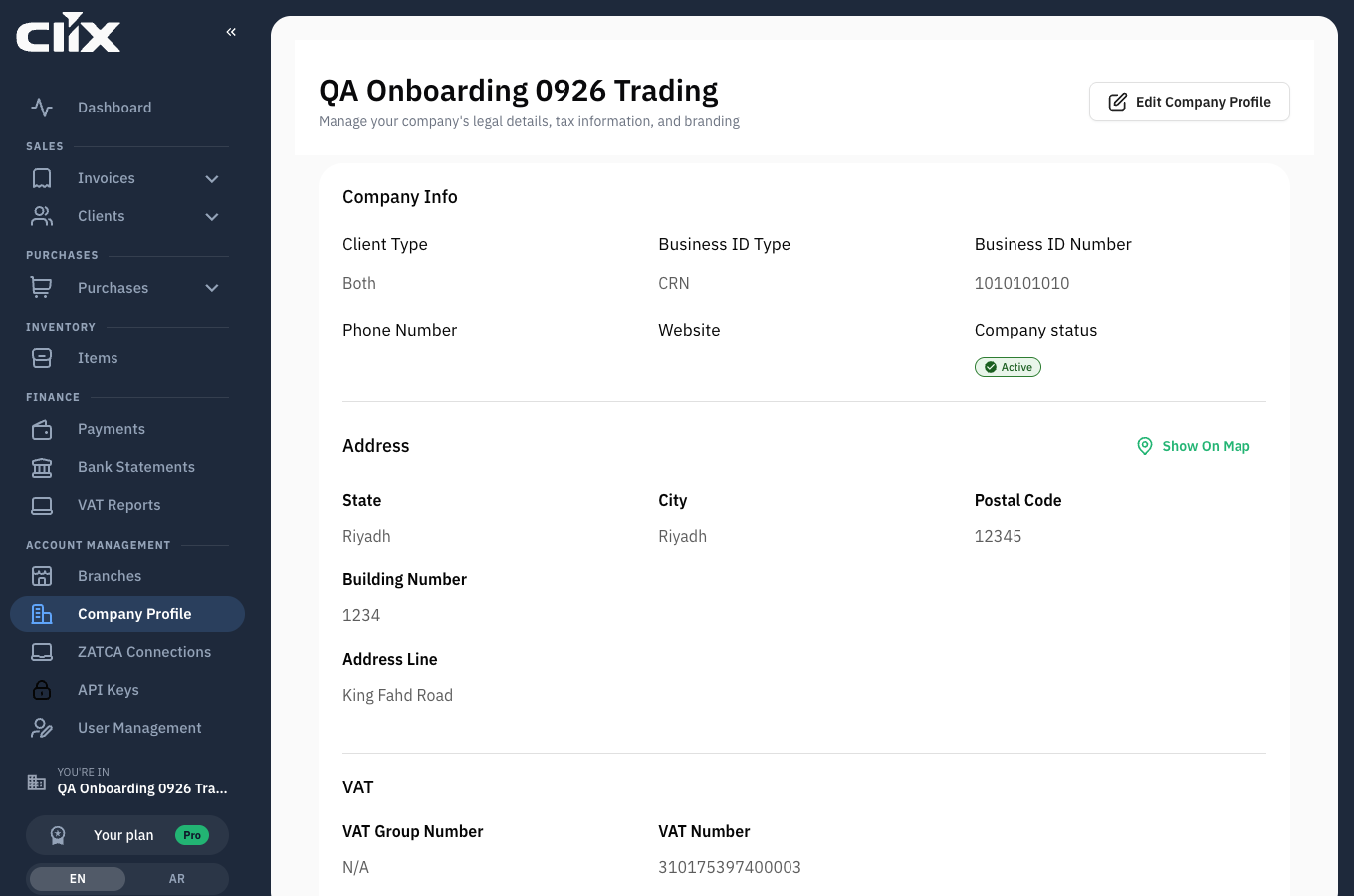
- Company Info: Client Type (who you sell to), Business ID Type, Business ID Number, Phone Number, Website and Company status.
- Address: State, City, Postal Code, Building Number and Address Line, the national address ZATCA requires.
- VAT: your VAT Group Number or VAT Number.
- Edit Company Profile: opens the edit form. Admin only.
This address is the one used by every business-level ZATCA connection. A connection linked to a branch uses the branch's address instead. See Branches.
Tasks
- Update your details
- Correct your VAT number
- Upload a logo
- Switch organisation
- Belong to more than one organisation
Update your details
Who. Admin.
- Open Company Profile.
- Click Edit Company Profile.
- Change what you need.
- Click Save changes.
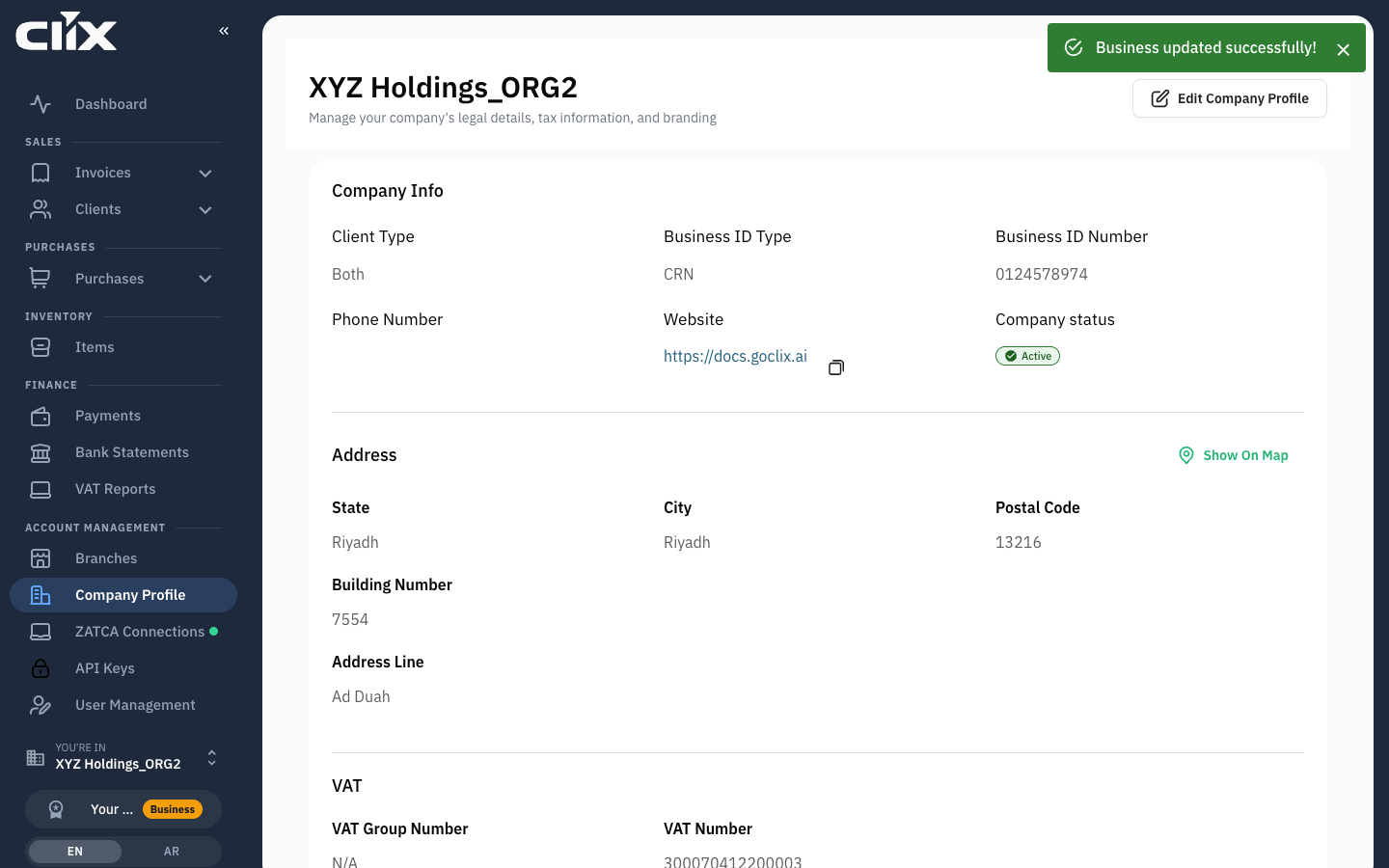
The form has two parts:
| Part | Fields |
|---|---|
| Company Info | Business Name, Business Name Arabic, Industry, Website, Business ID Type, Business ID Number, VAT Group Number, VAT Number, Phone Number, Upload Logo |
| Business Address | map search, Country, State, City, Postal Code, Building Number, District, Address Line |
Industry and VAT Group Number cannot be changed here; the fields are greyed out.
Result. "Business updated successfully!" Changes apply to invoices issued after the change. Issued invoices keep the details they were issued with: their PDF is built from the signed invoice XML.
Correct your VAT number
Who. Admin.
VAT Number stays editable until ZATCA has seen it. It locks once either is true:
- ZATCA has issued a production certificate to any of your ZATCA connections;
- ZATCA has cleared or reported a real invoice of yours.
After that the field is greyed out. To correct it, contact support@goclix.ai. An organisation that invoices under a VAT group number only cannot add an individual VAT number here either.
Upload a logo
Who. Admin.
- On the edit form, under Upload Logo, click Click to upload, or drag the file onto the box.
- Choose an SVG, PNG, JPG or GIF file.
- Click Save changes.
Switch organisation
Who. Anyone who belongs to more than one.
The organisation you are working in is named in the sidebar under You're in, and again under the dashboard greeting.
- In the sidebar, click Switch organization, the You're in block.
- Pick the organisation.
Clix clears what it had loaded and opens that organisation's Dashboard. When you sign in and belong to more than one, Clix asks first: "Choose an organization".
Check before you create
The active organisation is held per browser tab. If you work across two businesses in two tabs, check the sidebar name before issuing anything. An invoice raised in the wrong organisation has to be credited, not moved.
Belong to more than one organisation
You have one role per organisation, and they need not match: Admin in your own business, Accountant in a client's. An invitation to another organisation arrives by email; accepting it adds it to your switcher without affecting the first. The Admin role cannot be granted by invitation: it belongs to whoever created the organisation.
What lives elsewhere
| You want to change | Go to |
|---|---|
| Who may sign in | Users and roles |
| Locations you invoice from | Branches |
| ZATCA connections and certificates | Devices and certificates |
| Plan and billing | Subscription and billing |