لم تُترجم هذه الصفحة بعد
تعرض هذه الصفحة النص الإنجليزي حتى تصدر ترجمتها.
Branches
The locations your business issues invoices from. A branch matters when a ZATCA connection is linked to it: invoices issued through that connection carry the branch's address and business ID instead of the Company Profile address.
Who. Everyone can open Branches. Only an Admin can add, edit, archive or restore a branch.
Plan. Branches are a Pro and Business feature. On Free, Add Branch is hidden and the page shows "Multi-branch is a Pro / Business feature. Upgrade to manage multiple locations." with a See plans button.
What you see
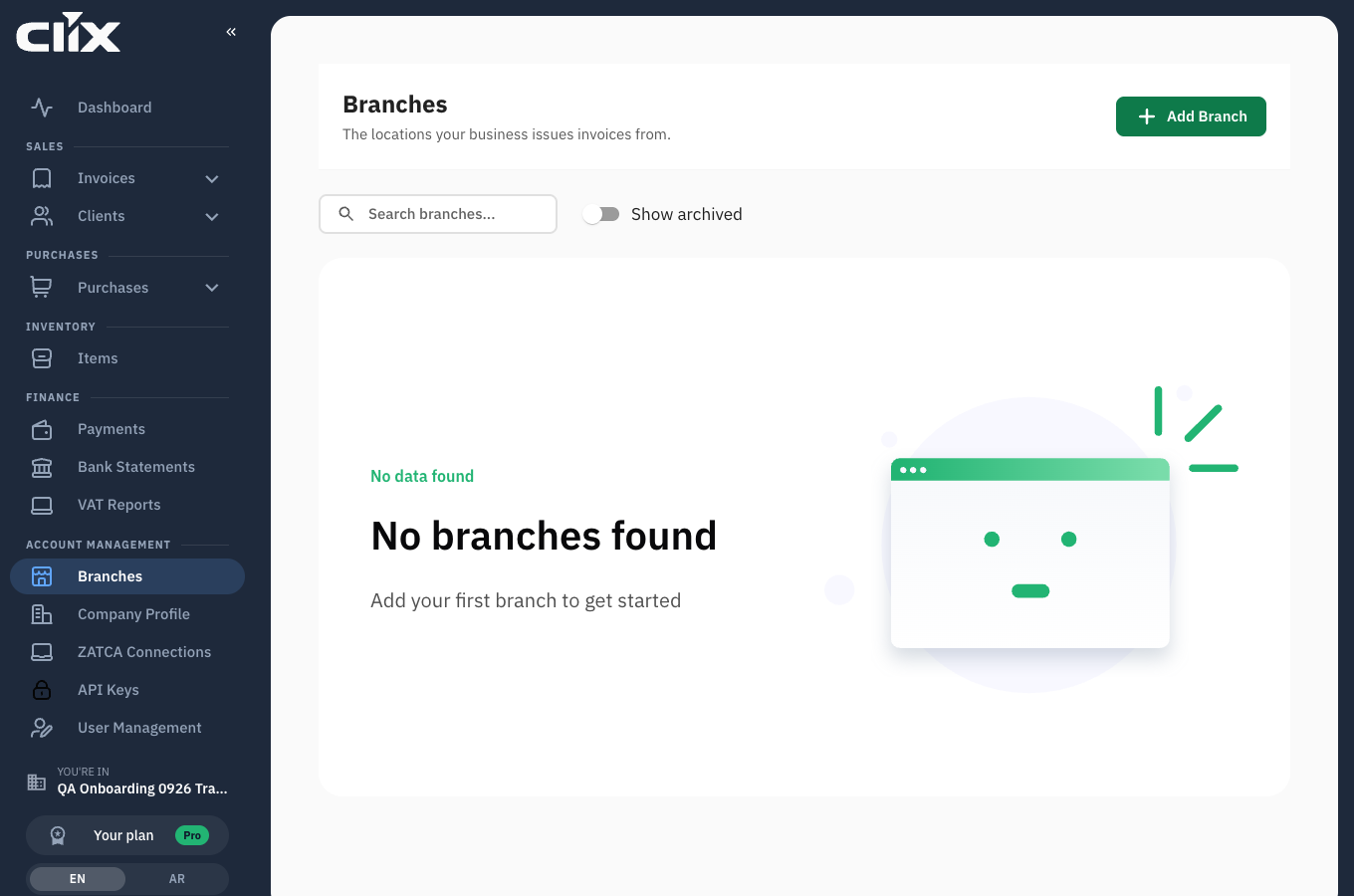
- Add Branch: opens the branch form.
- Search branches... and Show archived: find a branch, or include the ones you archived.
- The list: Branch Name, City, Region, Status, Created At, Devices and Actions. Devices names the ZATCA connections linked to the branch.
Click a row to see the branch's details, including its Linked Devices.
Do you need a branch?
Not always. A ZATCA connection is either a Branch connection or a Business-level connection. A business-level connection uses the address on your Company Profile. If you invoice from one place, you need no branches at all.
Add a branch when a separate location issues invoices and needs its own address on them: a second shop, a warehouse, a regional office.
flowchart LR
    CP["Company Profile<br/>address"] --> BL["Business-level connection"]
    BR["Branch<br/>address and business ID"] --> BC["Branch connection"]
    BL --> I1["Invoices carry the<br/>Company Profile address"]
BC --> I2["Invoices carry the<br/>branch address"]Tasks
Add a branch
Why. A second location that issues invoices under the same VAT registration and needs its own address on them.
Who. Admin, on Pro or Business.
- Open Branches and click Add Branch.
- Enter the Branch Name (English). Branch Name (Arabic) is optional.
- Under Pin the branch location, search by location name or short code, or tap the map. The address fields fill in.
- Check Region, City, District, Street and Building Number. Country is fixed to Saudi Arabia.
- Check Postal Code. Building Number must be 4 digits and Postal Code 5 digits.
- Choose the Business ID Type, for example a commercial registration number.
- Enter the Business ID Number. A CRN must be exactly 10 digits.
- Click Add Branch.
Result. "Branch created successfully", and the branch appears in the list as Active.
Match the city
The branch City must match the city on the ZATCA connection you link to it. The form says so under the field.
Link a ZATCA connection to a branch
Who. Admin.
You choose the branch when you create the connection, not afterwards. In the Connect to ZATCA dialog, under Where is this connection?, choose Select a branch and pick it from Branch. If the branch does not exist yet, click Add branch in the same dialog. See Devices and certificates.
Clix links the connection to the branch once ZATCA issues its certificate. The connection's Branch column then reads "Linked to" and the branch name.
Edit or archive a branch
Who. Admin.
- On the branch's row, click the ⋯ button, Manage.
- Click Edit or Archive.
Edit opens the same form as Add Branch; click Save Changes to keep your edits. Archive asks you to confirm and says: "The branch will be archived, not permanently deleted. You can restore it later." To bring an archived branch back, turn on Show archived and click Restore on its row.

A linked branch is locked
While a ZATCA connection is linked to a branch, Edit and Archive are greyed out: "This branch cannot be edited or archived while it has ZATCA connections linked to it."