لم تُترجم هذه الصفحة بعد
تعرض هذه الصفحة النص الإنجليزي حتى تصدر ترجمتها.
Invoices
Where you issue sales invoices and follow what ZATCA said about each one. Owners and anyone with the Create invoice or Accountant role work here daily; View invoice users can read everything but change nothing.
What you see
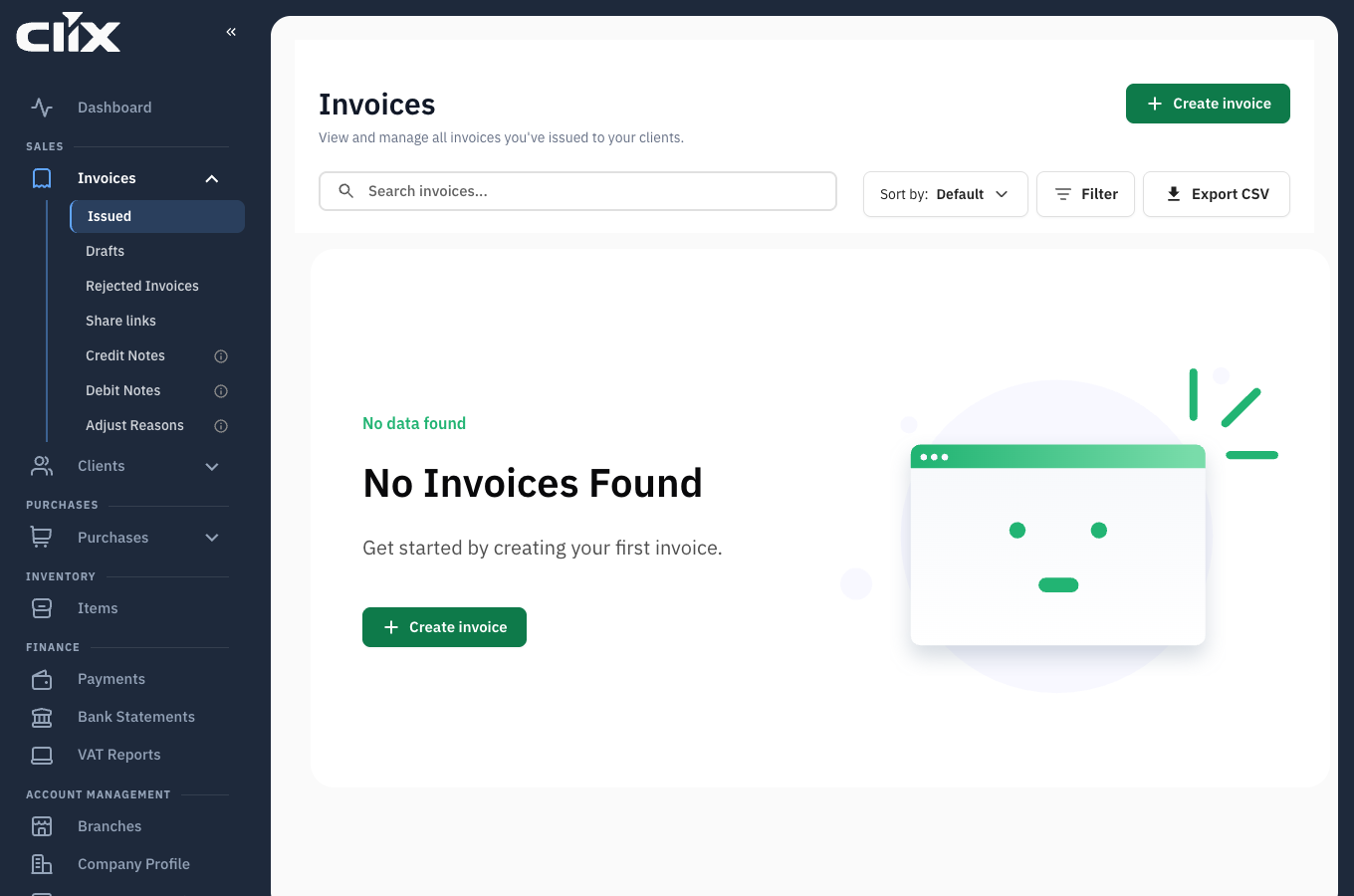
- All invoices: every submitted invoice, newest first, with its ZATCA status and payment status.
- Filters and search: by status, client, date, invoice number. See Search for what the box matches.
- Create invoice: the button, shown only to roles that may create.
- Drafts, Rejected and Share links: the three sub-pages in the tabs.
Tasks
- Create and submit an invoice
- Save a draft and finish it later
- Get a client to approve a draft before you issue it
- Replace a rejected invoice
- Download the PDF
- Email an invoice or share a link
- Attach a file to an invoice
- Set or change the due date
- Match an invoice to a bank payment
- Correct an issued invoice
Create and submit an invoice
Why. Every sale to a business needs a standard invoice cleared by ZATCA; every sale to a consumer needs a simplified invoice reported to ZATCA.
Who. Admin, Accountant, Create invoice. Done on the sandbox 2026-09-28.
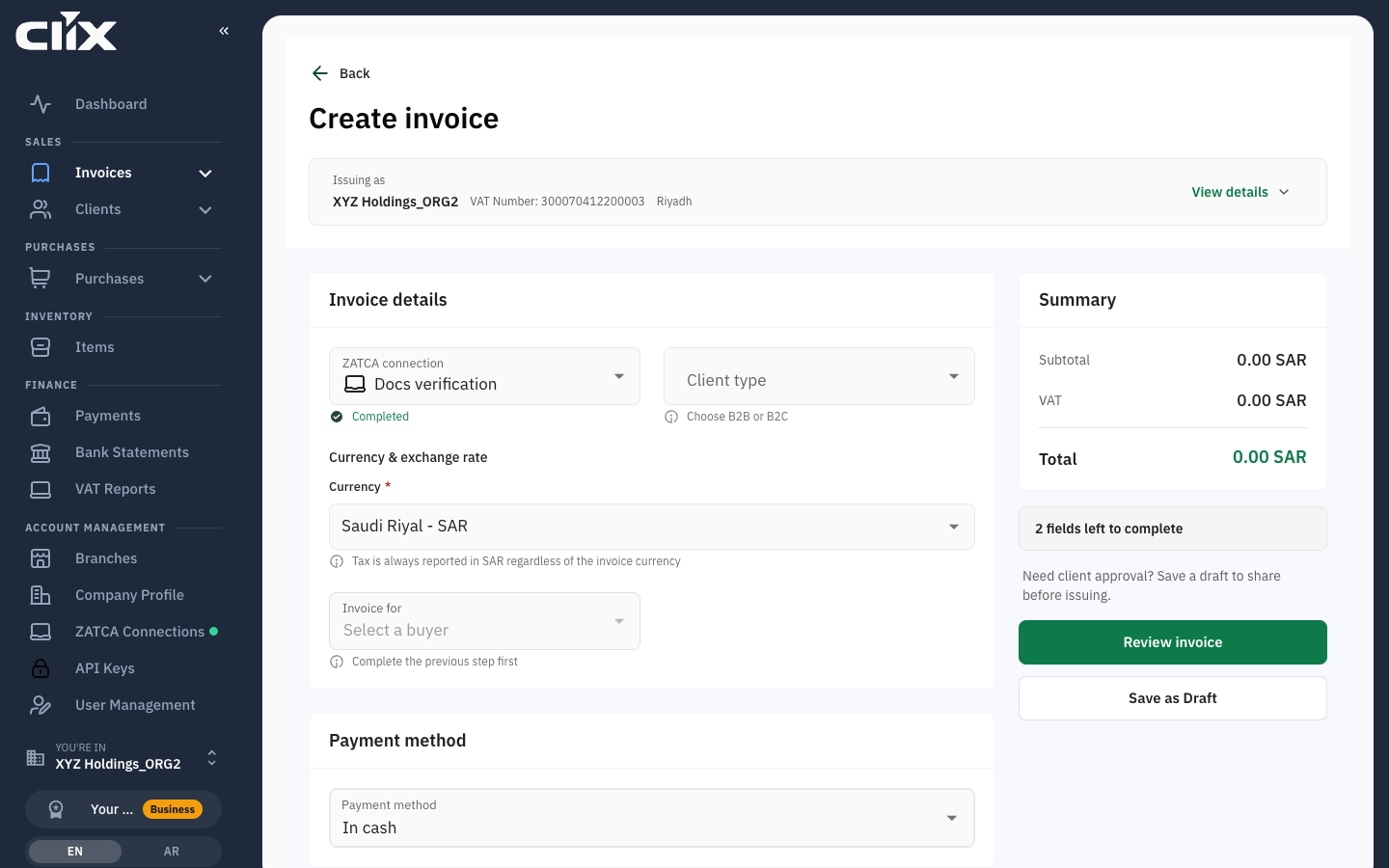
- Click Create invoice. The header shows who you are issuing as, with the VAT number, and View details opens the rest.
- Under Invoice details, choose the ZATCA connection. Only active connections are listed; the field reads Completed once chosen.
- Choose the Client type: B2B for a business, B2C for a consumer. A business client gets a standard invoice; a consumer, a simplified one. If the connection is registered for one type only, Clix sets it for you — "Auto-set based on device". See Invoice types.
- In Invoice for, choose the buyer from Select a buyer. Optional for B2C.
- Leave Currency on Saudi Riyal unless you invoice in another currency. Tax is always reported in SAR. For a sale to a business outside Saudi Arabia switch on Export invoice ("Mark as export invoice"): it zero-rates every line and sends the export subtype to ZATCA.
- Choose the Payment method. The default is In cash.
- Open Supply dates and check the Supply date, when the goods or services were delivered, and the Supply end date if the delivery spans more than one day. Both default to today. The issue date and time are stamped by Clix when you issue; you cannot set them.
- Under Invoice items, choose Products or Services. For products, click Add/Edit Items: the Select items panel lists your catalogue with name, price, category, SKU and stock; tick items, set the Quantity, and click Add selected. Add new Item creates one without leaving the invoice. For services, type the Service Name, Net Price and Quantity, choose the VAT treatment, and click Add Service; the line is added without a catalogue entry.
- Additional invoice options holds Add Discount and Add note.
- Watch the Summary: subtotal, VAT, total. The counter above the buttons says how many fields are still needed; Go to first issue jumps to the next one. It reads Ready to review when everything is in.
- Click Review invoice. Clix checks the invoice against ZATCA's rules; if it passes, the Preview invoice dialog opens. Check the totals and the client details.
- Click Issue invoice to ZATCA.
Result. "Invoice issued and sent to ZATCA". The status updates when ZATCA answers: Cleared for standard, Reported for simplified. The invoice is now final.
Save a draft and finish it later
Who. Admin, Accountant, Create invoice.
- While creating, click Save as Draft instead of Review invoice.
- Find it under Invoices → Drafts. Open it to edit, delete, download a draft PDF, or create a share link for a client to review before issue.
- When ready, open the draft and click Issue Invoice, or use Preview and Issue invoice in the draft's actions menu.
Result. The draft becomes an invoice and leaves the Drafts list. Drafts do not use an invoice number and do not count against the monthly quota until submitted.
Every draft row carries an Approved or Not approved pill, and the Drafts list can be filtered on it. What sets that pill is the next task.
Get a client to approve a draft before you issue it
Why. A cleared invoice is a fixed record — you cannot edit it, only correct it with a credit or debit note. Getting the client's sign-off while the document is still a draft is cheaper than correcting it afterwards.
Who. Admin, Accountant, Create invoice. The client needs no Clix account and no login.
- Open Invoices → Drafts.
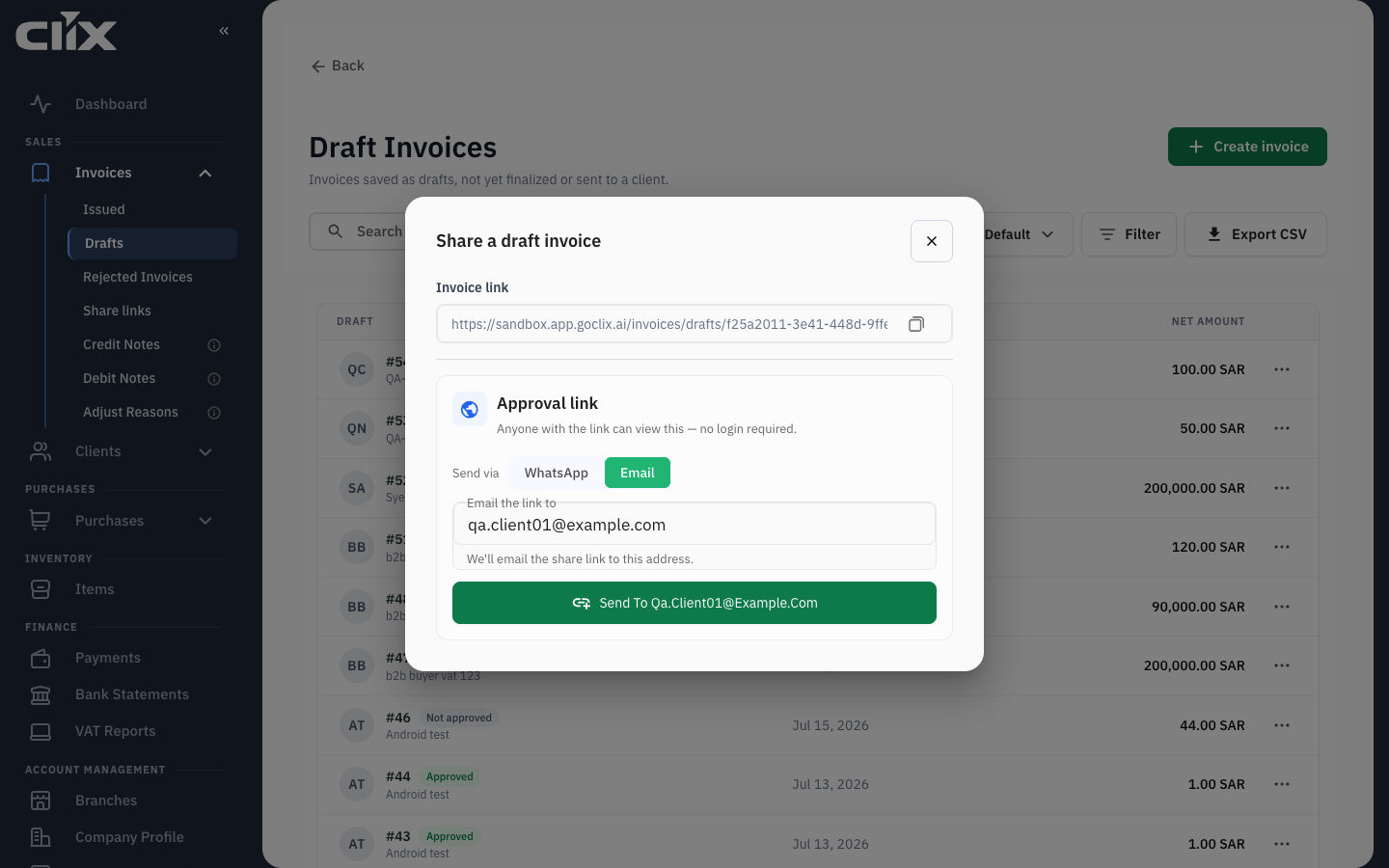
- On the draft's row, open the actions menu and click Share Draft. The Share a draft invoice dialog opens.
- Under Approval link, choose Send via: Email or WhatsApp.
- For email, fill in Email the link to — "We'll email the share link to this address." Send it.
What your client sees. A public page with the draft, stamped DRAFT, a Download PDF button, and an English/عربي switch. They click Approve invoice; Clix emails them a six-digit Verification code — "A verification code has been sent to your email. It is valid for 10 minutes." They type the code and click Approve.
They are never asked to type their name. Clix takes it from the buyer on the invoice, so the approval records who the document was actually addressed to.
Result. You get an email telling you the draft was approved. The draft's pill turns Approved, and it reads Approved by {name} with the time.
To turn the approved draft into a tax invoice, open its actions menu and click Preview and Issue invoice. Clix submits it to ZATCA and it leaves the Drafts list.
The code is only required when you email the link
Approval is gated on the verification code when the share link carries a recipient address. A link created without one keeps the older name-only path, so older links you have already sent still work.
| Rule | Value |
|---|---|
| Verification code | 6 digits, valid 10 minutes, single use |
| Wrong codes | locked after 5 attempts — send a fresh link |
| Re-approving | the first approval stands; it is never overwritten |
| Share link life | 30 days by default |
| Views | about 60 per hour per link |
| Revoking | Invoices → Share links → Revoke, effective at once |
Approval is for drafts only
A share link for an already-issued invoice has no Approve invoice button. That is deliberate — a cleared invoice is final, so there is nothing left to approve.
An expired, revoked or unknown link shows "This link is no longer available" rather than saying which of the three it was. That is intentional: it stops anyone probing links to learn what exists.
Replace a rejected invoice
Why. ZATCA rejected the invoice, so it is not a valid tax document. It cannot be resubmitted, in the app or through the API; you issue a corrected copy instead.
Who. Admin, Accountant, Create invoice.
- Open Invoices → Rejected Invoices and expand the invoice. ZATCA's reason is under ZATCA Compliance Status.
- Fix the cause where it lives: the client, the item, or your company profile.
- Open the invoice's ⋮ menu and click Duplicate Invoice.
- Correct the copy if the error was on the invoice itself, then click Review invoice and Issue invoice to ZATCA.
Result. The copy is a new invoice with its own number, and it counts toward your monthly allowance. The rejected one stays in Rejected Invoices as a record. If you cannot find the cause, use Contact Support in the same menu. Common rules and their fixes: ZATCA rejections.
No answer is not a rejection
An invoice still waiting for ZATCA's answer is different: it can be sent again. See Response not received in ZATCA rejections.
Download the PDF
Who. All roles.
- Open the invoice and click Download PDF.
- The first request generates the file; wait a few seconds and click again if the button shows a spinner.
Result. A PDF/A-3 with the ZATCA XML embedded and the QR code printed. This is the document to give the client; a screenshot of the screen is not a valid invoice.
Email an invoice or share a link
Who. All roles.
- Email: open the invoice, click Share, enter one or more addresses, click Send. Clix sends the PDF from your organisation's name.
- Link: click Share link. Copy the link. It opens a public page with the invoice and a download button, no login needed. On the Free plan the page shows "Powered by Clix".
- Revoke a link: open Invoices → Share links, find it, click Revoke. The link stops working at once.
Attach a file to an invoice
Why. Keep the purchase order, delivery note or contract with the invoice.
Who. Admin, Accountant, Create invoice to upload; Admin to delete.
- Open the invoice and go to Attachments.
- Click Upload and choose the file.
Result. The file is listed with its name and date. Attachments are yours; they are not sent to ZATCA and not shown on the public share page.
Set or change the due date
Why. The due date decides when an unpaid invoice counts as late on the dashboard and in Payments.
Who. Admin, Accountant, Create invoice.
- Open the invoice.
- Click the due date and pick a date.
Result. The dashboard's overdue figure and the Payments page use the new date from now on.
Match an invoice to a bank payment
Why. To find which bank line paid this one invoice, without working through the whole statement.
Who. Admin only.
Open the invoice and click Reconcile. Clix searches your imported bank transactions for lines that could have paid it, and returns two groups:
| Group | What it means |
|---|---|
| Exact matches | The amount and the buyer's details line up. Confirm and the payment is recorded. |
| Probable matches | Close enough to be worth a look — a part payment, a rounded amount, a transfer covering more than one invoice. You decide. |
The search covers a 90-day window from the invoice date, so a payment that arrives later than that will not appear here. Reconcile the other way round instead — from Payments → Bank reconciliation, which works through the statement line by line. See Payments.
Purchases have the same button; see Purchases and vendors.
Correct an issued invoice
An issued invoice cannot be edited or deleted; ZATCA has it. To reduce it, issue a credit note against it; to increase it, a debit note. See Credit and debit notes.
Statuses
Two independent statuses on every invoice.
flowchart TD
    A[Issue invoice to ZATCA] --> B{Standard or simplified?}
    B -->|standard, accepted| C[Cleared]
    B -->|simplified, accepted| D[Reported]
    B -->|standard, rejected| E[Not cleared]
    B -->|simplified, rejected| F[Not reported]
    E -->|"Duplicate Invoice, fix the copy"| A
    F -->|"Duplicate Invoice, fix the copy"| A
    C --> G[Final. Correct it with a credit or debit note]
    D --> G
ZATCA status
| Status | Meaning | What to do |
|---|---|---|
| Cleared | ZATCA approved this standard invoice; it is valid | nothing |
| Reported | ZATCA received this simplified invoice; it is valid | nothing |
| Not cleared | ZATCA rejected this standard invoice | duplicate it, fix the copy, issue it |
| Not reported | ZATCA rejected this simplified invoice | duplicate it, fix the copy, issue it |
Payment status
| Status | Meaning |
|---|---|
| Pending | nothing received yet |
| Partially paid | some payments recorded, balance remains |
| Paid | payments equal the invoice total |
| Overdue | balance remains and the due date has passed |
Payment status is set by what you record in Payments; it is not sent to ZATCA.
Limits and plans
| Free | Pro | Enterprise | |
|---|---|---|---|
| Invoices a month | 15 | 200 | unlimited |
| "Powered by Clix" on shared pages | shown | hidden | hidden |
When the monthly limit is reached, Issue invoice to ZATCA shows an upgrade message instead of issuing. Drafts can still be saved. Details in Plans, limits and fair use.
Questions
Why does my invoice have both a Cleared badge and a Pending badge? They answer different questions. Cleared is ZATCA's verdict on the document. Pending is whether the client has paid.
Can I delete an invoice I issued by mistake? No. Issue a credit note for the full amount. The invoice and the credit note both stay in the record, which is what ZATCA requires.
The client is a business but I only have their name. Ask for their VAT number. A standard invoice without a buyer VAT number is rejected. If they are not VAT registered, invoice them as a consumer with a simplified invoice.
Why is the Create invoice button missing? Your role is View invoice, or the organisation has no active device. Ask an Admin.
Does a draft count against my 15 invoices? No. Only submitted invoices count.
Save as Draft says "Required Fields Missing: Please add at least one item to the invoice." A draft needs at least one line. Add a product from Add/Edit Items or a service line, then save again.