لم تُترجم هذه الصفحة بعد
تعرض هذه الصفحة النص الإنجليزي حتى تصدر ترجمتها.
Subscription and billing
Where you see the current plan and where an Admin changes it and finds the bank details for payment.
Who. Everyone can open Subscription. Only an Admin sees Upgrade plan and Cancel subscription.
What you see
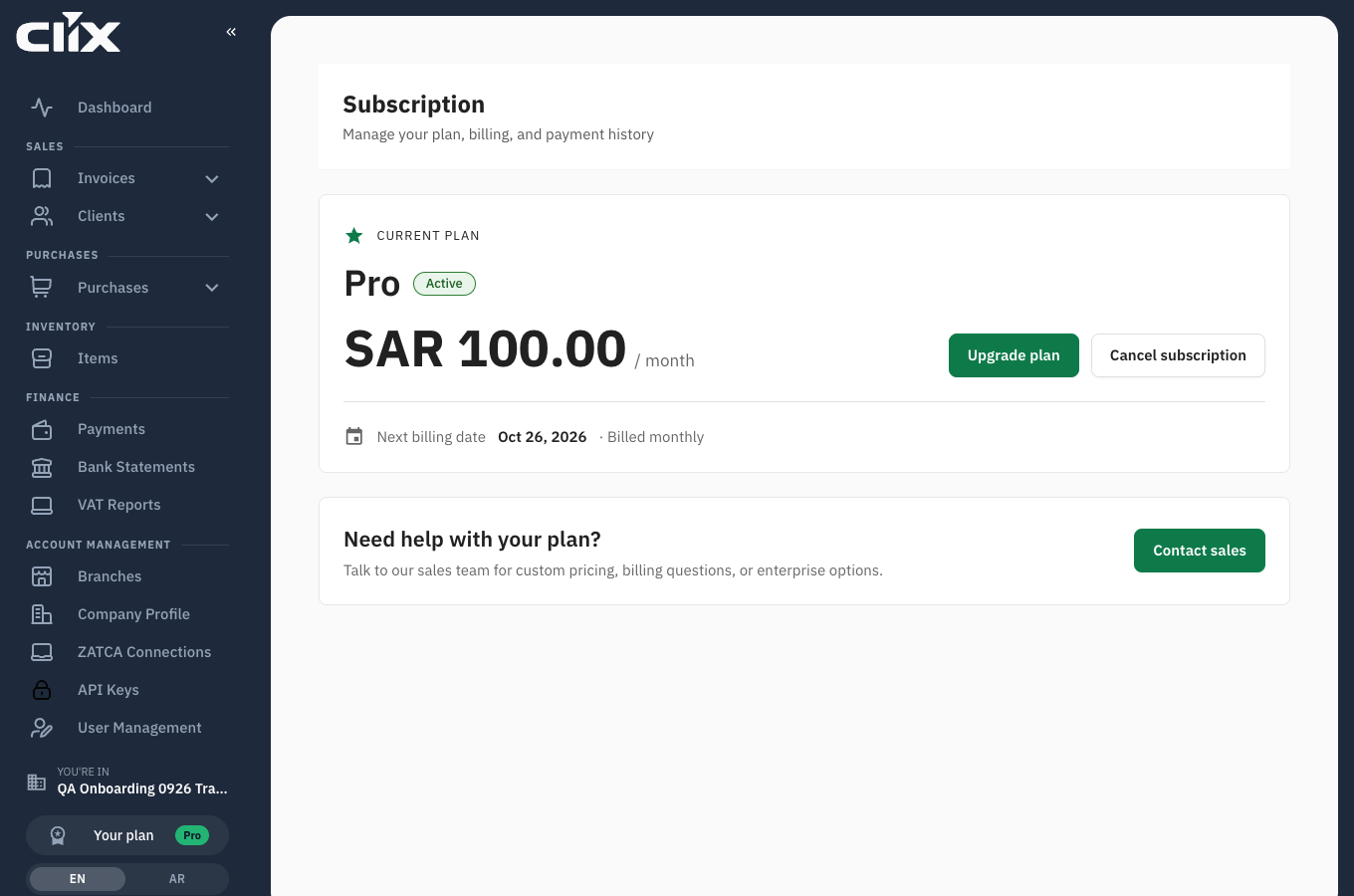
- Current Plan: the plan name, its status (for example Active), and the price per month or per year, without VAT.
- Upgrade plan: opens Pricing & Plans. Cancel subscription appears on paid plans.
- Next billing date, with Billed monthly or Billed annually. On Free it reads Not available.
- Contact sales: for custom pricing or questions the page does not answer.
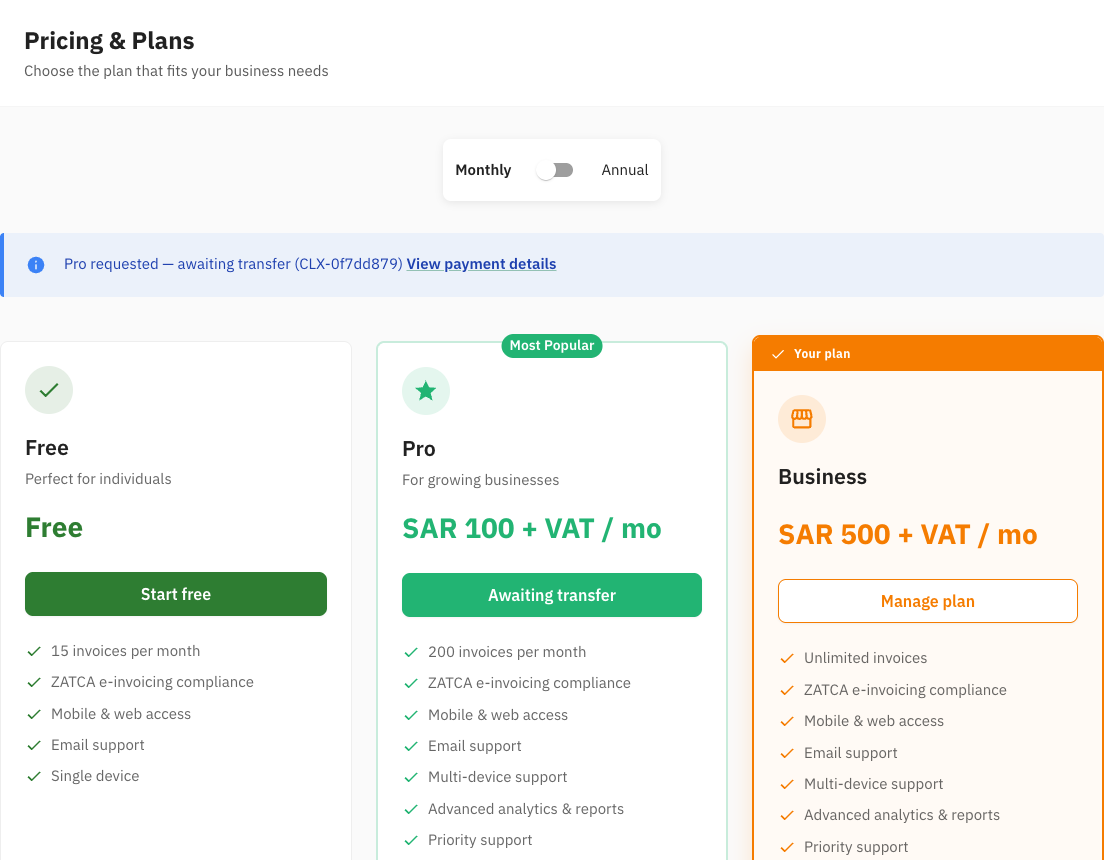
While a plan request waits for your transfer, a banner above the card reads, for example, "Pro requested — awaiting transfer (CLX-…)" with View payment details.
How to get here
There is no Subscription entry in the sidebar. Click the plan chip near the bottom of the sidebar: Your plan and the plan name.
Tasks
Upgrade to a paid plan
Why. You have reached the invoice limit, you need more than one branch, or you need the REST API.
Who. Admin. The organisation needs a VAT number or VAT group number on its Company Profile first.
- Click the plan chip in the sidebar to open Subscription.
- Click Upgrade plan.
- Choose Monthly or Annual with the switch at the top. Annual shows Save 17%.
- Click Choose Pro or Choose Business.
- In Pay by bank transfer, click Confirm.
- Note the bank details, then click Done.
Result. It depends on the plan you chose:
| You chose | What happens |
|---|---|
| Pro, Monthly, coming from Free, the first time | "Pro is active — transfer SAR 115.00 by …". Pro starts at once. Transfer within seven days to keep it. |
| Anything else: Business, Annual, or a change from a paid plan | "Transfer to activate …". The plan starts when the money arrives: "We activate your plan within one working day of the money arriving." |
The same bank details arrive by email.
flowchart TD
    A["Confirm on the pricing page"] --> B{"Pro, Monthly,<br/>from Free, first time?"}
    B -->|"yes"| C["Pro active straight away"]
    C --> D{"Transfer arrives<br/>within seven days?"}
    D -->|"yes"| E["Confirmation email"]
    D -->|"no"| F["Back to Free<br/>nothing deleted"]
    F -->|"money arrives later"| E
    B -->|"no"| G["Awaiting transfer"]
    G -->|"money arrives"| H["Plan activated within<br/>one working day"]
    H --> E
Pay by bank transfer
Why. Clix is paid by transfer, not by card.
Who. Admin, or whoever runs your banking.
The dialog and the email carry the same details. Open them again at any time with View payment details.
| Field | What it is |
|---|---|
| Subtotal, VAT 15% | The plan price and the VAT on it |
| Total to transfer | The price including 15% VAT: SAR 115.00 for a Pro month |
| Beneficiary | TAJROBAT AZM FOR INFORMATION TECHNOLOGY |
| Bank | Al Rajhi Bank |
| IBAN | The account to pay into |
| AZMX VAT number | Clix's VAT number, for your records |
| Reference | CLX- and eight characters. "Write it in the transfer note." |
| Pay by | The date to pay by |
Copy total, Copy IBAN and Copy reference copy each value.
The amount is not the plan price
Pro is SAR 100 a month; the transfer is SAR 115.00, because VAT is added. The subscription page shows the price without VAT. Always transfer the Total to transfer.
If the transfer does not arrive in time on the instant Pro path. The organisation returns to Free. Nothing is deleted: your invoices, clients, items and ZATCA connections are untouched. Pro comes back as soon as the money arrives with the same reference.
Changing from one paid plan to another. "… starts when your transfer reaches us. Unused days of your current plan are not credited."
Send your transfer receipt
Who. Admin.
Reply to the bank-details email with the transfer receipt attached, or send it to support@goclix.ai quoting the reference. While Pro is active and unpaid, the Subscription page also shows I've transferred; click it to tell support the money is on its way.
Result. Once the transfer is matched you receive a confirmation email with the amount received, your monthly invoice allowance, the next payment date and the reference. Clix's tax invoice for the payment follows by email within three working days.
Cancel
Who. Admin.
- On Subscription, click Cancel subscription.
- Optionally, give a Reason for cancelling.
- Click Confirm cancellation. Keep subscription closes the dialog.
Result. "Your subscription has been cancelled." The plan stays active until the end of the period you paid for, and the card shows "Cancels on" and the date. After that your organisation moves to Free. Nothing is deleted.